Logs, stats and managing automations
Read automation logs and stats, and pause, resume, edit, copy or delete automations from the Automations list.
Updated · 4 min read
On this page
The Automations list is where you control your automations. Logs shows what each one created, and 📊 Stats shows your results over time.
Where to find it
- List: Sidebar → Settings → Automations (Automations).
- Logs: the Logs button on an automation's card, or on the Home dashboard under Active automations.
- Stats: 📊 Stats at the top of the list (Automation Stats).
The Automations list
Each card shows the name, a status badge and a summary line: 📅 special day, 🏪 channel, ⚡ AI or Upload, 📦 N created · N failed, 🔢 N/day limit and 🕐 when it last ran.
| Button | What it does |
|---|---|
| Pause (Active) | Stops new runs. A run that has already started finishes its current products. You'll see Automation paused. |
| Resume (Paused) | Makes the automation Active again. You'll see Automation resumed. |
| Logs | Opens the log for this automation |
| Continue (Draft) | Reopens the wizard at the step where you stopped |
| Edit | Opens the wizard at step 1 to change settings |
| Copy | Duplicates the automation |
| Delete | Deletes the automation and its logs |
Edit a live automation
Click Edit. The wizard shows Editing live automation. Each step you save with Continue → takes effect from the next check. You don't need to click 🚀 Start Automation again. If you do, the automation becomes Active, even if it was paused.
Copy an automation
- Click Copy, then Create copy in the Duplicate this automation? window.
- You'll see Automation copied. You can now edit the copy. The copy is named "Copy of …", has the status Draft and starts with zero counts.
- Click Continue on the copy, go through the steps (your settings are pre-filled) and click 🚀 Start Automation.
Delete an automation
Click Delete, then Delete in the Delete automation? window. The automation and all its logs are permanently deleted, and you'll see Automation deleted. Products and designs it already created are kept, in PallFlow, in Printify and in your store. On the Designs page they then appear under Manual instead of Automation.
The Logs page
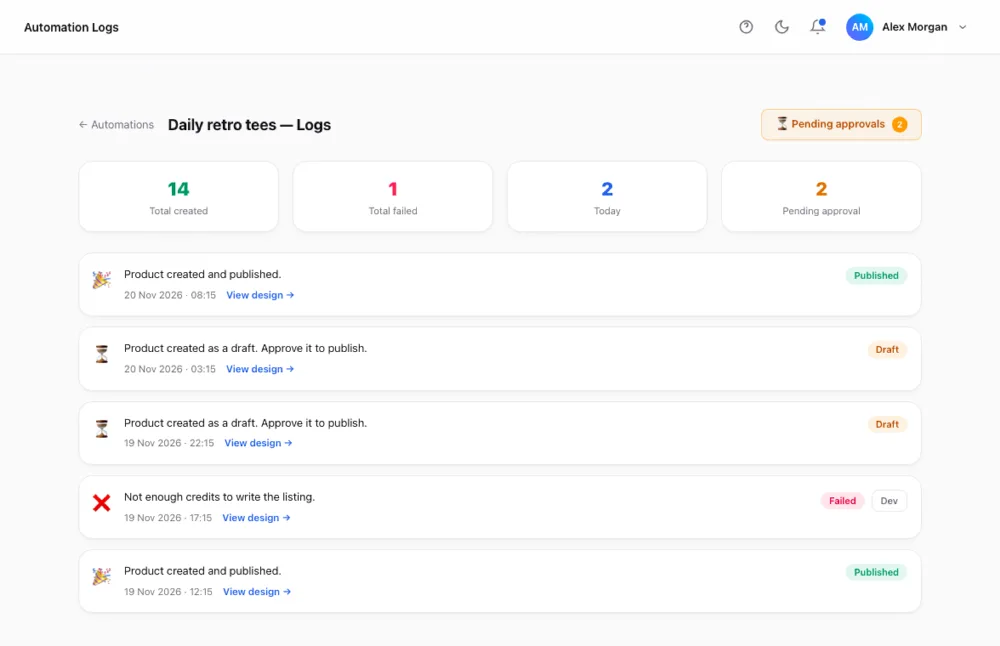
At the top: ⏳ Pending approvals and four cards. Total created and Total failed are the automation's counters, Today is the number of products created successfully today (UTC), and Pending approval counts drafts.
Below them, each product has one entry, newest first, 30 per page:
| Icon and label | Meaning |
|---|---|
| 🎉 Published | The product was published to your store |
| ⏳ Draft | The product is in Printify, waiting for approval. See Draft mode and approvals |
| ❌ Failed | The product couldn't be finished, or it's still being made (see the note below) |
Each entry shows a message, the time (UTC) and View design →, which opens the design in the product wizard. Click Dev to see Technical details: the Printify product ID and, for failed entries, the exact error.
Note: While a product is still being created, its entry already shows ❌ Failed with "Something went wrong." Wait a few minutes and refresh before you act on it.
Messages you'll see:
- "🎉 "…" was published to your Shopify store." (or Etsy store)
- "✅ "…" is ready and waiting for your approval."
- "Something went wrong. We'll retry in the next run." The product is retried at the next checks, up to 3 times.
- "Something went wrong and we couldn't finish this product." All retries failed.
If no products have been made yet, you'll see "No runs yet. The automation will start on …".
The Stats page
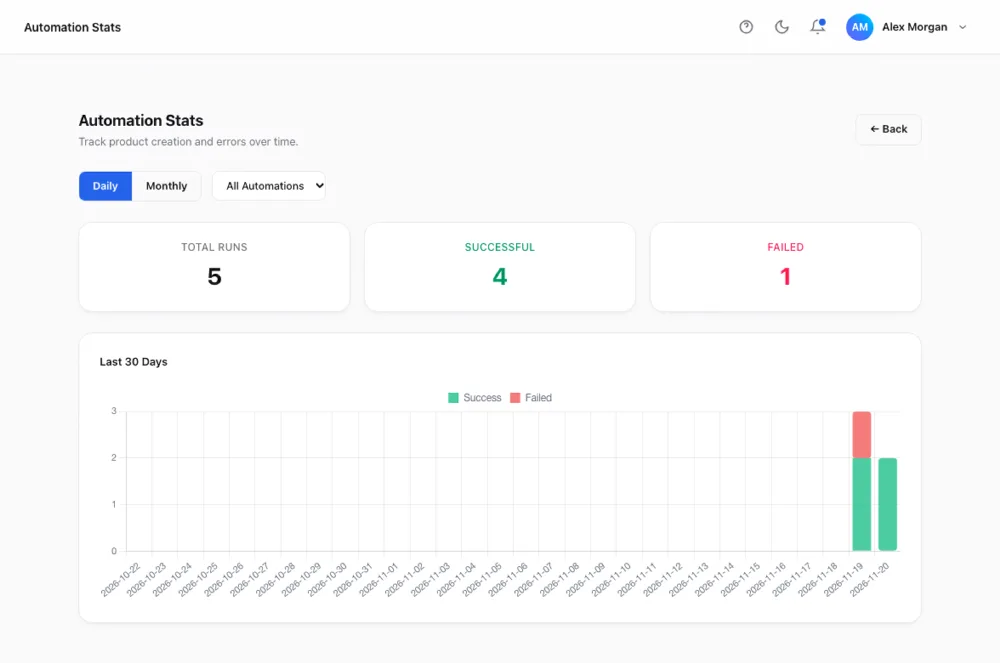
- Choose Daily (the last 30 days) or Monthly (the last 12 months).
- Choose All Automations or one automation.
- Read the cards Total Runs, Successful and Failed, and the chart with Success and Failed bars per day or month.
Stats count log entries. Some failures happen before a log entry exists, for example when Printify is disconnected. They raise the failed number on the automation card but don't appear in Stats.
Other places to check
- Designs: the Automation tab lists every design an automation made. Pick All automations or one automation to filter. Failed products show there with a failed status.
- Credits History: each charge is labeled Automation # plus the automation's number.
- Home: Active automations shows your three most recently run active automations.
Credits and limits
Viewing logs and stats is free. Each product costs 10 credits for an AI design (if used) plus 3 credits for the listing.
Troubleshooting
The failed count on the card is higher than in Logs or Stats Some errors stop a run before a log entry is created: Printify disconnected, no Printify shop, no unused image left, or an AI image error. See Why didn't my automation run?.
There's no Cancel button To stop an automation for good, use Pause or Delete.