Pricing margin profiles
Create markup profiles so PallFlow can turn Printify costs into retail prices in design step 4 and in automations.
Updated · 4 min read
On this page
A margin profile is a markup percentage. PallFlow uses it to turn the Printify cost of a product into your retail price, both in design step 4 and in automations. Set one up before your first product: without a profile, prices start at cost, which means no profit.
Where to find it
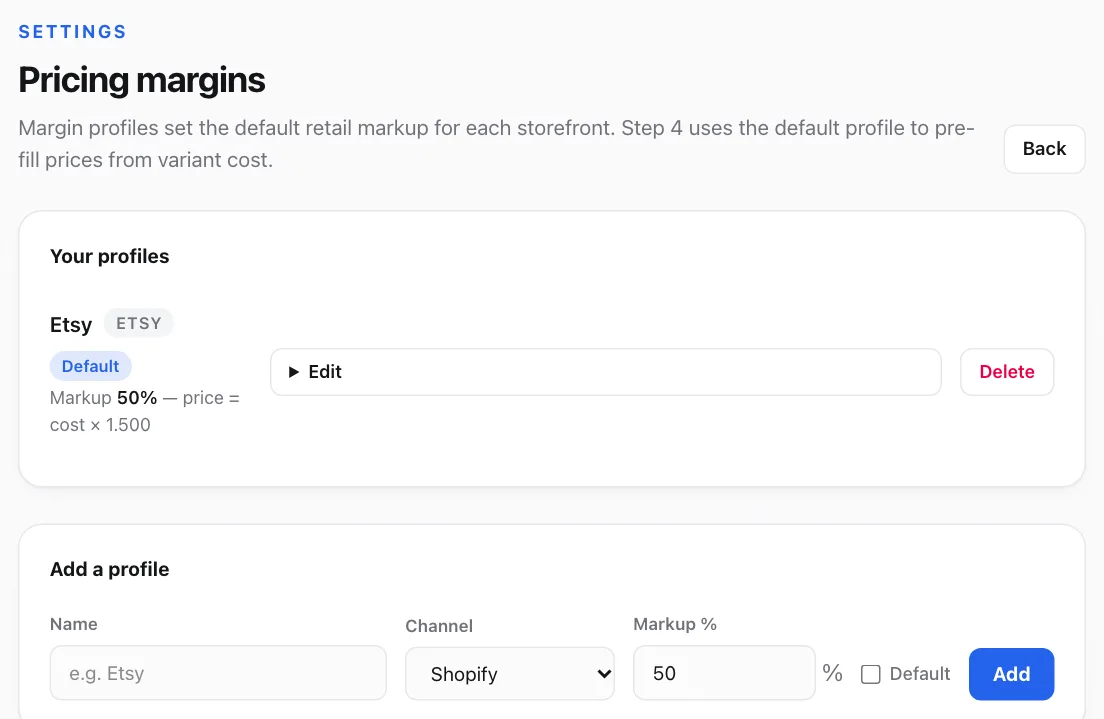
Click Settings → Pricing in the sidebar, or open Pricing margins. Design step 4 also has an Edit margin profiles → link that opens this page in a new tab.
How the price is calculated
Price = cost × (1 + markup ÷ 100)
- The cost is the print provider's starting price plus its shipping price for one item, as PallFlow has it from the Printify catalog.
- Each profile shows its formula, for example Markup 50% — price = cost × 1.500.
- With a 50% markup, a product that costs $12.00 is priced at $18.00.
Markup is not the same as margin. In the example above you add 50% on top of the cost, but your margin on the sale price is 33%. Etsy, Shopify and payment fees also come out of that difference, so choose a markup that leaves room for them.
Step by step
- Open Settings → Pricing.
- Under Add a profile, type a Name, for example Etsy. It is required and can be up to 80 characters.
- Pick a Channel: Shopify or Etsy. The channel is a label that helps you tell profiles apart. Step 4 and automations list every profile, whatever its channel.
- Set Markup %. It starts at 50 and can be anything from 0 to 500, with up to two decimals.
- Tick Default if this profile should be your default. Your first profile always becomes the default, ticked or not.
- Click Add.
What you'll see
The message Margin profile «Name» created. appears, and the profile is listed under Your profiles with its channel, its markup and a Default badge if it is the default. The default profile is always listed first, the others alphabetically.
Edit, change the default or delete
- Edit opens the profile's fields. Change the name, channel or markup, tick Make default if you want, and click Save. You'll see Margin profile «Name» updated.
- Set default makes that profile the default. You'll see «Name» is now the default margin. There is always exactly one default.
- Delete asks Delete «Name»? and then shows Margin profile deleted. If you delete the default profile, your oldest remaining profile becomes the default.
Where profiles are used
Design step 4 (pricing). The first time you open step 4 for a product, every variant's price is filled in from your default profile. On the right, the Margin profiles card lists all your profiles: click one, then Apply selected margin to all variants to recalculate every price from cost. For a one-off markup, type it in Custom margin and click Apply margin to all. You can still change any single price by hand.
Automations. In the automation's Pricing step you pick one profile, and every product the automation creates is priced with it. The step says "You need at least one margin profile to continue." if you have none.
Note: Editing a profile doesn't change prices you already saved on existing products. Open step 4 of a product and apply the profile again to update it. Automations use the profile's current markup for every new product they create.
Important: If you delete a profile that an automation uses, the automation is left without a pricing profile. Edit the automation and choose another one.
Credits and limits
- Margin profiles are free and don't use credits.
- There is no limit on the number of profiles.
- Markup: 0% to 500%. Name: up to 80 characters.
Troubleshooting
"The margin percent field must not be greater than 500." The markup is above 500%. Enter 500 or less.
"The margin percent field must be at least 0." Negative markups aren't allowed. Enter 0 or more.
"The name field must not be greater than 80 characters." Shorten the profile name.
Step 4 says "No margin profiles yet." Add a profile here, go back to step 4 and click Apply selected margin to all variants.
My prices didn't change after I edited a profile. Saved prices on existing products are kept. Reapply the profile in step 4 of each product you want to update.