Create your account and sign in
Sign up with email or Google, verify your email, sign in, reset a forgotten password and fix common sign-in errors.
Updated · 5 min read
On this page
You can create a PallFlow account with your email address or with your Google account. Email sign-ups must confirm their address before the first sign-in. Google sign-ups can start right away.
Where to find it
Before you start
- You need an email inbox you can open now. The verification and password links are sent there.
- PallFlow's Terms of Service require you to be at least 18 years old.
- No credit card is needed. New accounts start on the Free plan.
Step by step
Sign up with your email
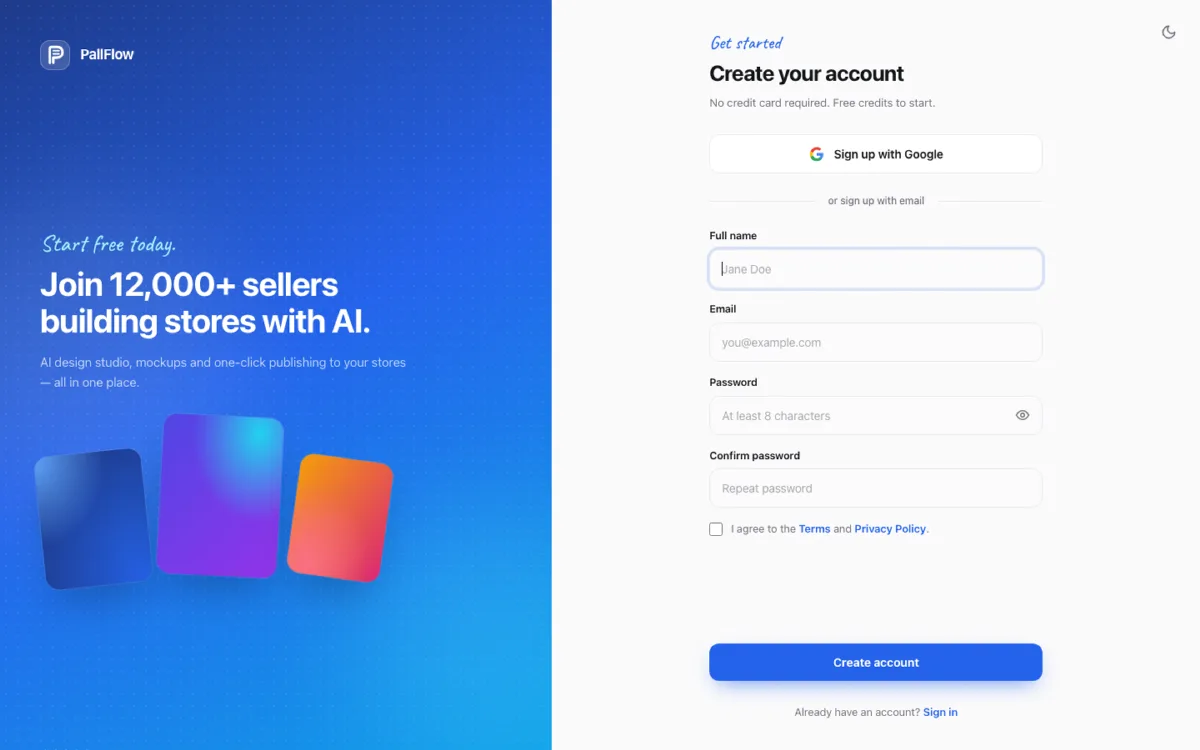
- Open Create account. The page is titled Create your account.
- Fill in Full name (up to 255 characters).
- Fill in Email. Each email can have only one PallFlow account.
- Choose a Password of at least 8 characters, and type it again in Confirm password. Click the eye icon to show what you typed.
- Tick I agree to the Terms and Privacy Policy. Click Terms or Privacy Policy to read them in a window.
- If you see a human check box, complete it.
- Click Create account.
You're taken to the sign-in page with the message "Account created! We sent a verification link to your email. Please verify before logging in."
Verify your email
- Open the email from PallFlow with the subject Verify your email address. Check your spam folder if you don't see it.
- Click Verify Email Address. The link works for 60 minutes.
- PallFlow confirms your address, signs you in and opens Home.
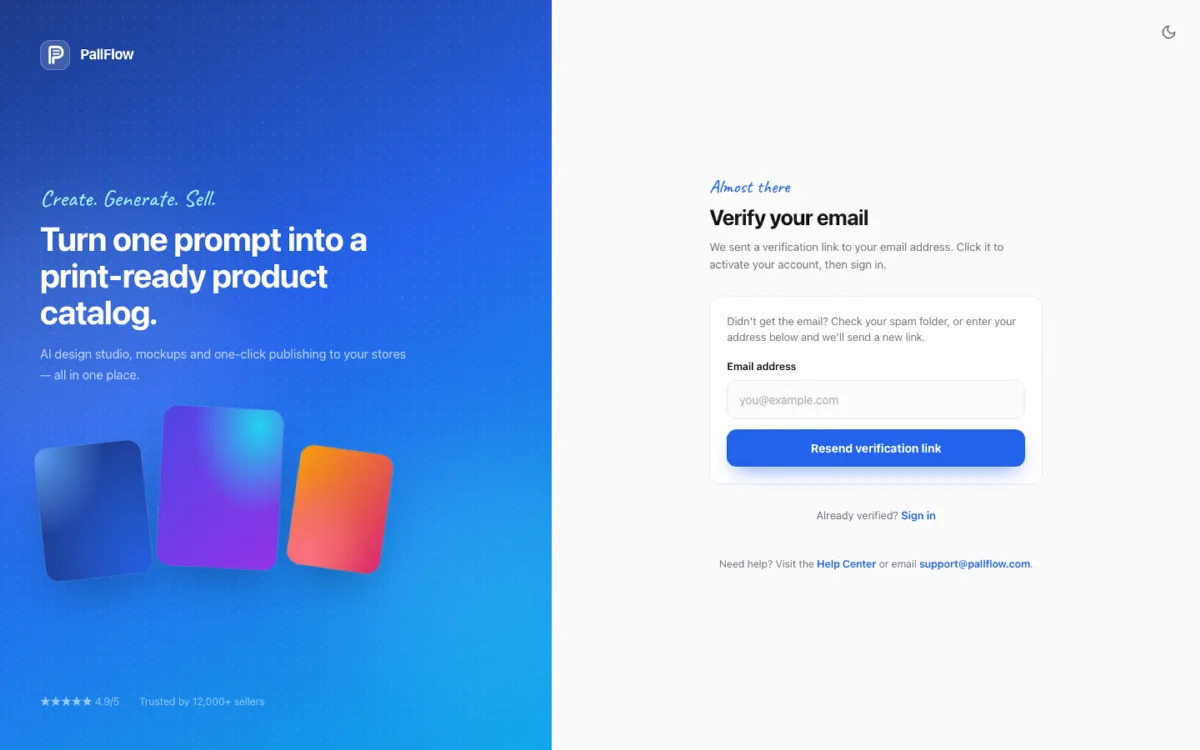
If the email never arrived, or the link expired, open Resend the verification email. Type your address under Email address and click Resend verification link. You'll see "If that email needs verification, we just sent a new link." The page shows the same message whether or not the address has an account.
Sign up or sign in with Google
- On Create account click Sign up with Google, or on Sign in click Continue with Google.
- Choose your Google account and approve.
If no PallFlow account uses that email yet, one is created for you with your Google name. The email counts as verified, so there's no verification email. If a PallFlow account with the same email already exists, Google opens that account. Google sign-in always keeps you signed in on that browser.
Sign in
- Open Sign in.
- Enter your Email and Password.
- Tick Keep me signed in if this is your own computer.
- Complete the human check if you see one, then click Sign in.
You land on Home, or on the page you were trying to open.
Reset a forgotten password
- On the sign-in page, click Forgot? next to Password.
- Enter your Email and click Send reset link. You'll see "We have emailed your password reset link."
- Open the email Reset your password and click Reset Password. The link works for 60 minutes.
- Check Email, then type a New password (at least 8 characters) and repeat it in Confirm new password.
- Click Reset password. You're back on the sign-in page with "Your password has been reset."
Tip: Signed up with Google and want to sign in with email and password too? Use Forgot? to set a password for your account.
Sign out
Click your name in the top-right corner and choose Log out.
What happens next
When your email is verified (or right after a Google sign-up), your account gets the Free plan's monthly credits: 50 credits. Then open the Get Started guide to connect Printify and your store.
Credits and limits
- Passwords need at least 8 characters.
- Verification and password reset links expire after 60 minutes.
- You can ask for a new password reset email once every 60 seconds.
- Sign-in, password reset and resend requests are limited to 6 tries per minute.
Troubleshooting
"Please verify your email before logging in. Check your inbox for the verification link." You haven't clicked the link in the verification email yet. Find the email (check spam), or get a new link at Resend the verification email.
"These credentials do not match our records." The email or password is wrong. Check for typos and Caps Lock, or reset your password with Forgot?. If you signed up with Google, use Continue with Google.
"Human verification failed. Please try again." The human check wasn't completed or timed out. Wait for the check box to finish, then submit again. Reload the page if the box doesn't appear.
"The email has already been taken." An account with this email already exists. Sign in instead, use Continue with Google if you signed up that way, or reset the password.
"The password field confirmation does not match." The two password fields are different. Type the same password in both.
"The password field must be at least 8 characters." Choose a longer password.
"Google sign-in failed. Please try again." Google didn't finish the sign-in, for example because you cancelled or the page timed out. Try again from the start.
"We can't find a user with that email address." No account uses that email. Check the spelling, or create an account.
"Please wait before retrying." You asked for a reset email less than 60 seconds ago. Wait a minute, and check your inbox for the first email.
"This password reset token is invalid." The reset link expired, was already used, or doesn't match the email you typed. Ask for a new link with Forgot?.
"403 | Invalid signature." The verification link has expired (after 60 minutes) or was changed when copied. Ask for a new one at Resend the verification email.
"Your email is already verified. You can log in." You clicked a verification link for an account that's already verified. Just sign in.
"429 | Too Many Requests" Too many attempts in one minute. Wait a minute before trying again.