Connect Shopify with your own app
Create a private app for your store in the Shopify Dev Dashboard, install it, and paste its Client ID and Client secret into PallFlow.
Updated · 6 min read
On this page
PallFlow connects to Shopify through a small private app that you create for your store in the Shopify Dev Dashboard. It takes about 5 minutes, and the app only works with your own store. The PallFlow app in the Shopify App Store isn't available yet, so for now this is how every Shopify store is connected.
PallFlow uses this connection to put products into your collections, to send mockup images and reel videos to your products, to build product links for Pinterest, and to show the store in design step 2. The product itself still comes from your Printify shop.
Where to find it
Settings → My Stores → Shopify → + Connect Store: My Stores. The window that opens is titled Connect Shopify Store and repeats these steps.
Before you start
- Your Shopify store is already added to Printify. See Add your Shopify or Etsy shop to Printify.
- You can sign in to Shopify with the account that owns the store. A staff or collaborator account won't work.
- You know your store's
.myshopify.comaddress. Your Shopify admin shows it under Settings → Domains.
Step by step
1. Create the app in Shopify
- Go to dev.shopify.com and sign in with the store owner's account.
- Open Apps, click Create app and choose Create app manually.
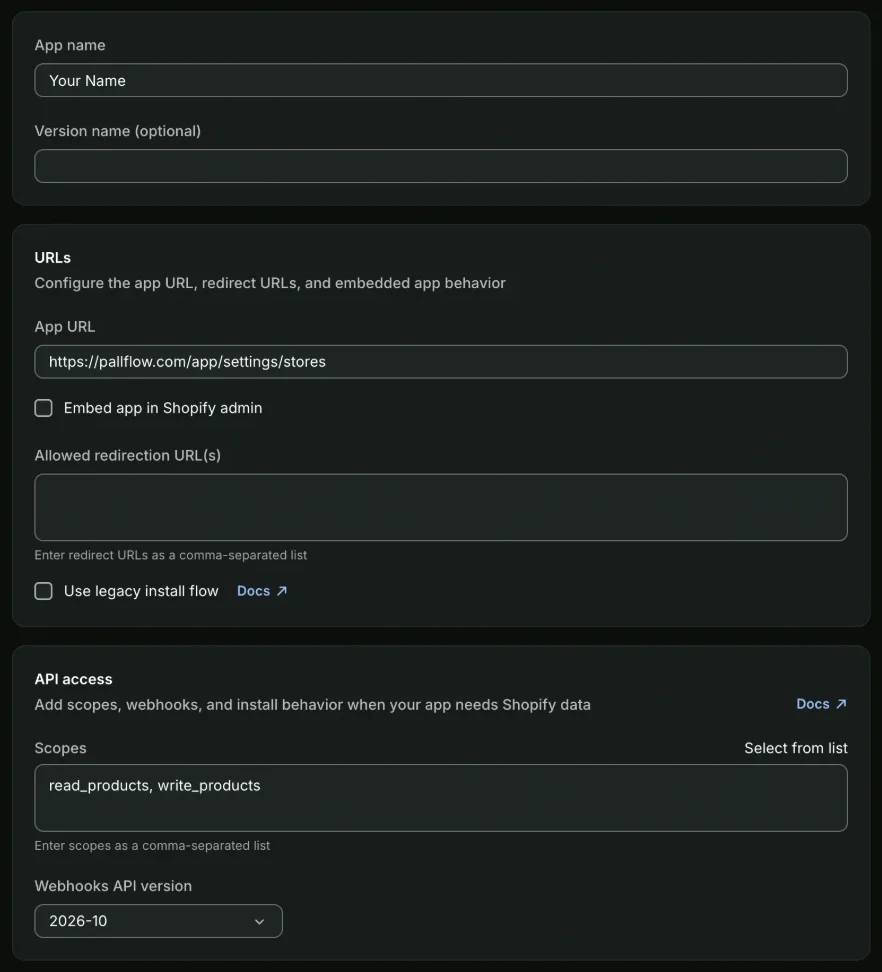
- Fill in the form:
- App name: Your Name (your own name).
- App URL: the address of your My Stores page,
https://www.pallflow.com/app/settings/stores. The Connect Shopify Store window shows it too, ready to copy. - Leave Embed app in Shopify admin unchecked. If it's ticked, Shopify tries to open PallFlow inside your admin.
- Leave Allowed redirection URL(s) empty. PallFlow doesn't need one.
- Scopes:
read_products, write_products. The Connect Shopify Store window always shows the current list. - Leave the other fields as they are.
- Click Create app.
2. Install the app on your store
- On the app's page, find the Installs card and click Install app. It may say Test app instead.
- Choose your store and approve the installation in your Shopify admin.
Installing gives your own app access to your store with the scopes you chose. PallFlow can only connect after this step.
3. Copy the credentials
- On the same page, in the Credentials card, copy the Client ID and the Client secret with the copy buttons.
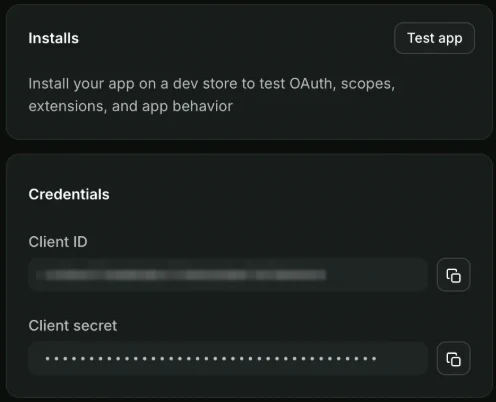
Important: The Client secret works like a password for your store. Paste it only into PallFlow and don't share it.
4. Connect in PallFlow
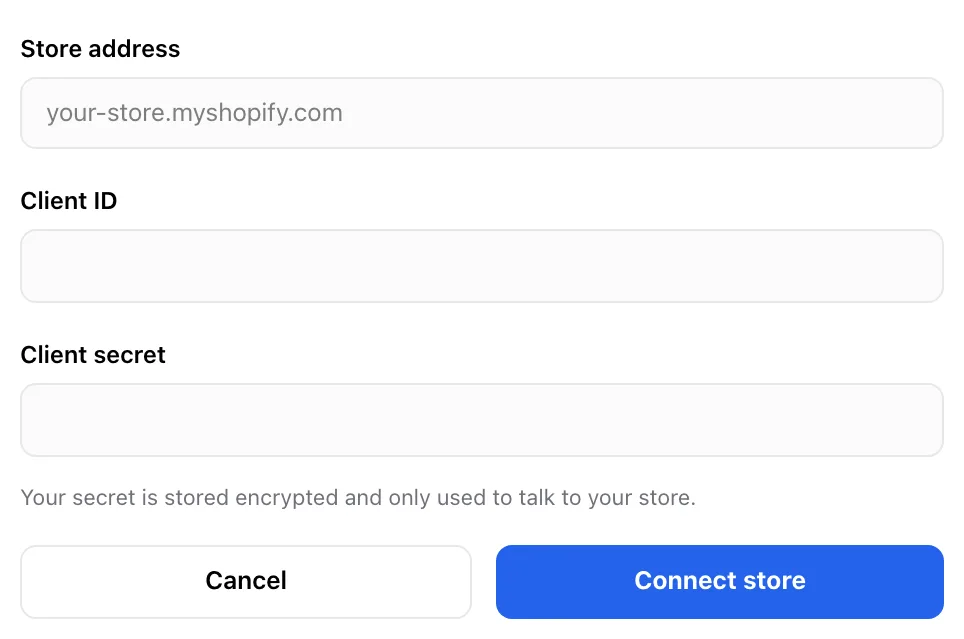
- Open My Stores and click + Connect Store in the Shopify card.
- In Store address, enter your
your-store.myshopify.comaddress. You can also paste your admin address (admin.shopify.com/store/your-store) or just the store name; PallFlow turns it into the.myshopify.comaddress. A custom domain such asyourbrand.comdoesn't work here. - Paste the Client ID and the Client secret. The secret field hides what you paste.
- Click Connect store. Cancel closes the window without saving.
What happens next
- PallFlow asks Shopify for access with your app's credentials. There's no Shopify sign-in window and no redirect.
- PallFlow checks that your app has every scope it needs.
- You see the green message "Shopify store connected with your own app."
- The store is listed with an Own app badge and Connected. The line under its name shows the
.myshopify.comaddress, your Shopify plan and when it was connected. - PallFlow renews the store's access by itself, about once a day, with your saved Client ID and secret. Your secret is stored encrypted and only used to talk to your store.
- Under the store you'll find Update app credentials ▾ and Custom domain.
- In design step 2, the store appears under Your connected store.
Custom domain (optional)
If your customers know your store under its own domain, type it under Custom domain (for example yourbrand.com) and click Save. PallFlow uses it in Pinterest product links instead of the .myshopify.com address. You'll see "Custom domain saved: yourbrand.com". PallFlow removes https://, www. and anything after the domain for you. To go back, empty the field and click Save: "Custom domain cleared — using *.myshopify.com."
Credits and limits
- Connecting Shopify is free, and there's no limit on the number of stores.
- Create one app per store. An app only works with the store it was created for.
- A store can be connected to one PallFlow account at a time.
- Store address, Client ID and Client secret can each be up to 255 characters.
Troubleshooting
"Enter your store's .myshopify.com address (you can find it in your Shopify admin under Settings → Domains)."
PallFlow couldn't find a .myshopify.com address in what you typed. Use that address, not your custom domain.
"Shopify only gives access to an app created by the account that owns your-store.myshopify.com. Sign in to dev.shopify.com with that account, create the app there, install it on the store and try again." The app was created with a staff or collaborator account, or in another organisation. Sign in to the Dev Dashboard as the store owner, create the app there, install it and connect again.
"Shopify didn't accept this Client ID and Client secret for your-store.myshopify.com. Copy both again from the Credentials card on your app's page in the Dev Dashboard, and make sure the app is installed on this store." A value was copied incompletely, the secret was rotated, or the app isn't installed on this store. Copy both values again with the copy buttons and check the Installs card.
"Shopify refused access for your-store.myshopify.com (…). Make sure your app is installed on this store and its Client ID and Client secret are up to date." Shopify gave another reason, shown in the brackets. Most often the app isn't installed on this store yet.
"Your app is missing these permissions: …. In the Dev Dashboard, create a new version with them, release it, approve the update in your Shopify admin and try again." The app was created without all the scopes listed above. Add them in a new app version, release it, approve the update in your Shopify admin, then click Connect store again.
"We couldn't reach your-store.myshopify.com. Check the store address and try again in a minute." The address has a typo, or Shopify didn't answer. Check the address and try again.
"This Shopify store is already connected to another PallFlow account. Sign in to that account to use it." Another PallFlow account connected this store first. Sign in to that account and disconnect the store there. If you no longer have access to it, contact support.
The store shows Needs attention Shopify stopped accepting your app's credentials. See Reconnect a Shopify store or switch it to your own app.