Compose and schedule posts
Create one post for several Instagram and Facebook accounts, with text per platform, AI captions, first comment and music. Publish now or schedule.
Updated · 5 min read
On this page
Compose creates a post for one or more Instagram and Facebook accounts at once. Each account gets its own text, so you can write a hashtag-heavy Instagram caption and a shorter Facebook post in one go. Publish right away or schedule for later. Pinterest pins are made in Pinterest Pin Studio.
Where to find it
Sidebar → Social → Compose: Compose. The page heading is Create a post.
You also land here from:
- Create post on an account card in Social → Connections (that account is pre-selected).
- + New post on Social → Posts.
- Share on Instagram in step 5 of the product wizard (the photos you ticked are added as media).
- Share in Social → Reels List (the video is added as media).
Before you start
- Connect at least one account in Connections. Until you do, the Compose page stays empty below its title.
- Frozen accounts (fee not paid) can't receive posts. Check Social → Billing.
Step by step
1 Accounts & Media
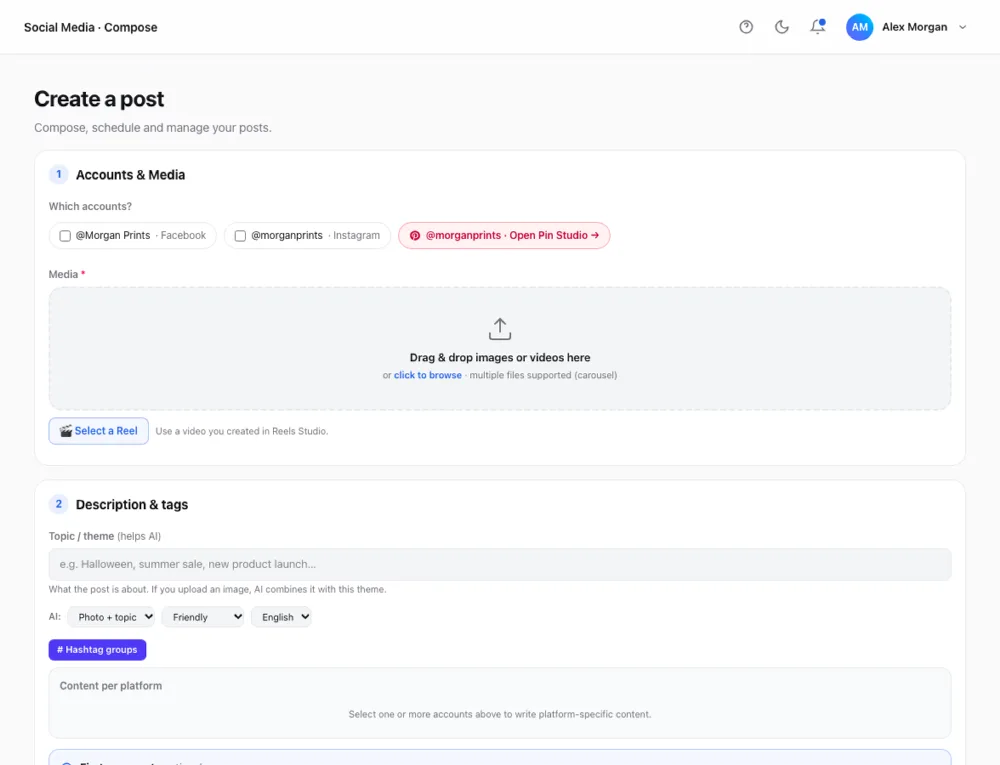
- Under Which accounts?, tick the accounts to post to. Pinterest accounts appear as a link (@name · Open Pin Studio →) because pins are made in Pin Studio.
- For each ticked Instagram or Facebook account, choose Feed or Story. Feed is the default.
- Add media under Media (required). Drag files onto the drop area or click it to browse. You can add several files: two or more make a carousel (the page notes Instagram allows up to 10 items). Drag thumbnails to change the order; click ✕ to remove one.
- Accepted files: PNG, JPG/JPEG, GIF, WEBP, MP4, MOV and WEBM, up to 50 MB each.
- To use a video you made in Reels Studio, click 🎬 Select a Reel and pick it.
2 Description & tags
- Optional: type a Topic / theme (for example "Halloween sale"). The AI uses it when it writes captions.
- Optional: set the AI options next to AI: — what it should use (Photo + topic, Photo only, Topic only), the tone (Friendly, Professional, Funny, Promotional, Informative) and the language (English or Türkçe).
- Under Content per platform, write the text for each ticked account. Each box has two buttons:
- ✨ AI for Instagram (or the account's platform) writes a caption with hashtags for that platform. When the first media item is a photo, the AI looks at it; videos aren't analyzed.
- 📋 Copy to others copies this box's text into all the other boxes.
- Optional: click # Hashtag groups to insert a saved set of hashtags. See Hashtag groups.
- Optional: fill in First comment. It's posted automatically as the first comment when the post goes live — handy for hashtags or a shop link (Instagram captions aren't clickable). It works on Instagram and Facebook.
Important: An account whose text box is empty is not posted to. If some boxes are empty when you publish, a Some platforms have no text dialog lists them; click Continue to post to the rest or Go back.
Music (optional)
- To add music, upload a track or click Use on one from your list. Music turns your photo(s) into a short Reel video (3 seconds per photo with fade-style transitions), because Instagram and Facebook don't accept music on plain photo posts. If your media already contains a video, the music is skipped. You can also put a brand logo on that video under Logo on the video. See Music and logo for reels.
3 Schedule & publish
- To post now, click Publish.
- To post later, tick Schedule for later and pick the date, time and timezone. The button changes to Schedule. The timezone starts on the one you last chose on this device, or your browser's timezone. The post goes out at that time in that timezone.
What you'll see
- A green message: "Post published." or "Post scheduled." The form clears for the next post.
- With music, the message shows progress: "Adding music — turning your photo(s) into a Reel…", then "Creating your Reel…", "Publishing to your account…" and "Published ✓ — your Reel will appear shortly." The video is made in the background, so you can leave the page. It also shows up in Social → Reels List.
- The post appears on Posts, and on the Calendar if it has a date. You get a notification (and an email, if it's switched on for the account) when it's published or fails.
- To change a scheduled or failed post, open it from Posts and click Edit. Compose opens as Edit post with an Update button. The first comment can't be changed when editing. Published posts can't be edited.
Credits and limits
- Publishing and scheduling posts doesn't use credits; you pay the monthly account fee instead (Social account fees).
- Each click on ✨ AI for … uses 10 credits, only when the text is created.
- Up to 5,000 characters per platform text and 2,000 for the first comment. Platforms have their own caps too, for example 2,200 characters on Instagram.
- Media: 50 MB per file.
Troubleshooting
"Please add at least one image or video (media is required)." New posts need media. Add a photo or video, or pick a reel.
"Write text for at least one platform." All text boxes under Content per platform are empty. Write text or use the AI button.
"Pick date, time and timezone." Schedule for later is ticked but a field is empty.
"Select at least one valid account." The accounts you chose are frozen or were removed. Check Social → Billing and add credits, or pick another account.
"Not enough credits for AI content." Your balance is below the AI cost. Buy credits in Settings → Plans, or write the text yourself.
"Enter a topic or upload an image first." (or the Need a topic / Need a photo dialogs) The AI needs something to work from. Type a topic, add a photo, or change the Photo + topic setting.
"Some uploads failed" Some files couldn't be uploaded. Check the file type and the 50 MB limit, then add them again.
"Publishing service error (…)." The publishing service rejected or couldn't take the request. Wait a minute and try again; check Posts before retrying so you don't post twice.
"Could not create the Reel — …" or "Reel created, but publishing failed — …" The music video couldn't be made, or it was made but not posted. Try again, or post without music.