Generate images with AI
Describe a design or start from a reference image, pick a style, and generate a print-ready, transparent, upscaled image in the Media Library.
Updated · 5 min read
On this page
The ✦ Generate tab creates print-ready artwork from a text description. Every image comes out square, with a transparent background, already upscaled for print, and lands in your Media Library ready to use in a design.
Where to find it
Sidebar → Media Library → ✦ Generate tab. Go to Media Library.
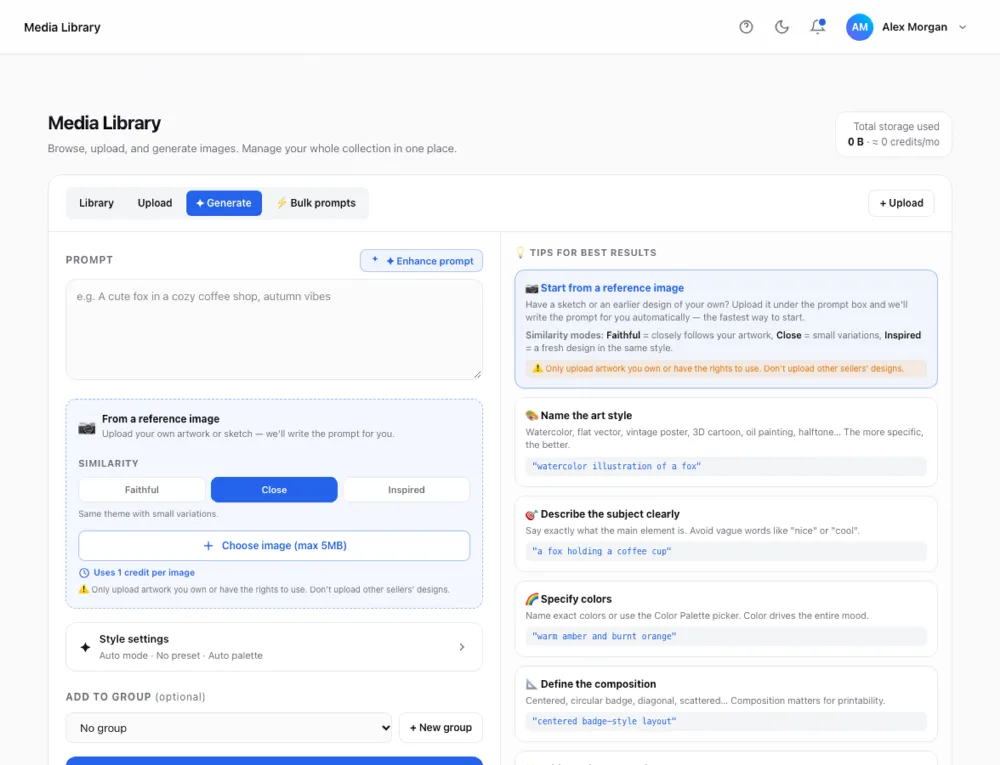
Step by step
- Open the ✦ Generate tab.
- Describe the design in Prompt (3 to 5,000 characters). Describe the artwork only, not a product. The Tips for best results panel on the right has advice: name an art style, describe the subject clearly, name colors, define the composition, and avoid text in the image.
- Optionally click ✦ Enhance prompt. AI rewrites your short idea into a detailed prompt and replaces the text in the box. You can edit it before generating.
- Optionally start From a reference image instead of writing a prompt (see below).
- Optionally click Style settings to choose a mode, a style preset and a color palette (see below). The button shows your current choice, for example Auto mode · No preset · Auto palette.
- Click ✦ Generate with AI. A status box shows the steps: Enhancing prompt…, Generating image…, Removing background…, Upscaling…, Saving…. Keep the page open until it finishes.
- When it's done, PallFlow switches to the Library tab and opens the new image in the large view.
Note: The Add to group menu on this tab doesn't apply to generated images at the moment; they are saved with no group. Use Move on the Library tab afterwards. See Upload and organize images.
Start from a reference image
Use this when you have your own sketch or earlier artwork and want a prompt written for you.
- In the From a reference image box, choose a Similarity:
- Faithful: closely follows your own artwork, useful for redrawing or cleaning up a design you own.
- Close (default): same theme with small variations.
- Inspired: a fresh, original design inspired by the style.
- Click Choose image (max 5MB) and pick a JPG, PNG, WebP, GIF or AVIF file up to 5 MB.
- The button shows Analyzing image…. When it's done, the written prompt appears in Prompt.
- Review the prompt, then click ✦ Generate with AI as usual.
The reference image is only used to write the prompt; it isn't added to your library.
Important: Only upload artwork you own or have the rights to use. Don't upload other sellers' designs.
Style settings
Click Style settings to open the Style Settings window:
| Setting | Choices |
|---|---|
| Mode | Auto (optimal style for your prompt), General (flexible, artistic and abstract), Realistic (lifelike colors and textures), Design (vector art, logos, graphics) |
| Style preset | About 50 looks, such as Watercolor, Pop Art, Flat Vector, Vintage Poster, Coloring Book I and II, Anime, Halftone Print. Click a preset to apply it and click again to remove it. |
| Color palette | Auto, Ember, Fresh, Jungle, Magic, Melon, Mosaic, Pastel, Ultramarine, or Custom with your own hex color |
Click Apply to keep your choice, or Reset to defaults to go back to Auto.
What you'll see
- The new image appears first on the Library tab with an AI badge. Its file name is made from your prompt.
- Its badges show Upscaled and … credits charged.
- Generated images have a transparent background and are upscaled to 4× their original size, so they're ready for printing. See Upscale images and remove backgrounds.
- To use the image, open a product in step 2 and pick it from the library. See Step 2: Design studio.
Credits and limits
- ✦ Generate with AI: 10 credits per image. Background removal and upscaling are included. Credits are only taken when the image is saved; a failed generation costs nothing.
- From a reference image: 1 credit per analyzed image, charged only when the prompt is written. (The box says Uses 1 credit per image; the price that applies to your plan is the one shown here.)
- ✦ Enhance prompt: free.
- One image per click, always square. Prompt: 3 to 5,000 characters. Reference images: up to 5 MB.
- Generated images count toward your storage. See Storage usage and storage fees.
To generate many images automatically, use Bulk prompts.
Troubleshooting
"Insufficient credits. You need … credits to generate an image." Your balance is below the image cost. Buy extra credits or upload your own artwork, which is free.
"Not enough credits. You need … credit to generate a prompt from an image." Your balance doesn't cover the reference analysis. Click Buy credits; you're taken to the Plans page after a moment.
"Unsupported type. Use JPG, PNG, WEBP, GIF or AVIF." or "Unsupported image type. Allowed: JPG, PNG, WEBP, GIF, AVIF." Convert the reference image to one of these formats.
"Image must be 5MB or smaller." Shrink the reference image.
"File is not a valid image." The file is damaged or isn't really an image. Try another file.
"Could not analyze the image. Please try another one." The AI couldn't read the reference image. You weren't charged. Try a clearer image.
"An error occurred. Please try again later." ✦ Enhance prompt failed. Your prompt is unchanged; try again or generate without enhancing.
Another error appears under the Generate button The AI couldn't create the image this time. You weren't charged. Rephrase the prompt (avoid brand names, famous characters and real people) and try again.