Send product images to Shopify and Etsy
Put your mockups and charts on your live listing: straight to Shopify, or to Etsy through Printify with the PallFlow Printify Assistant.
Updated · 6 min read
On this page
After you make a mockup or chart, Send to store puts it on your product's listing. Shopify images go straight to your Shopify product. Etsy images travel through Printify: the PallFlow Printify Assistant Chrome extension adds them to the product in Printify, and Printify passes them to your Etsy listing.
Where to find it
- Step 5: Preview & publish → AI mockups → Send to store under a mockup, or Push to store when the mockup is open in the large view.
- Step 5 → Color chart / Size chart → Send to Etsy (last photo). The label says Etsy, but the button sends to whichever store the product uses.
- Sidebar → AI Mockups → Send to store on any card. See The AI Mockups page.
Before you start
- Shopify: the product must be published to your store. Until then the card shows Send this in schedule (or Publish to enable sending on a mockup you just made).
- Etsy: the product must exist in Printify, which step 5 does when it creates the preview. You don't have to publish first: images sent early go to Etsy when Printify publishes the product.
- Etsy: install the PallFlow Printify Assistant in Chrome, sign in to it with PallFlow, and stay signed in to Printify in the same Chrome. Setup is in Upload Etsy listing images with the Printify Assistant.
Step by step
Shopify
- Click Send to store under the mockup (or Push to store in the large view).
- On step 5 the card shows ✓ Sent to Shopify (the large view shows shopify ✓).
The mockup becomes the product's first (main) image; your other product photos move down one place. Color and size charts are added at the end of the product's images.
Etsy
- Click Send to store under the mockup or chart.
- On step 5 the card shows Queued… and a notice appears in the bottom-right corner, for example The assistant is sending the image to Etsy through Printify. The card then follows the send by itself: Waiting for Printify…, Waiting for Printify Assistant… or Sending via Printify…, and finally ✓ Sent to Etsy. It stays that way after you reload the page.
- Keep Chrome open. What happens next depends on the mode you chose in Settings → Extensions under How should images be sent?
- Manual: click Send all now in the extension, or Send in step 5.
- Automatic: waiting images are sent by themselves while Chrome is open, including charts of automation and scheduled products.
- PallFlow waits until Printify has finished preparing the product, then the extension uploads each image to the product's mockup library in your own Printify session.
- PallFlow saves the photo order in Printify:
- your mockups first (the first one becomes the Etsy cover photo);
- then the Printify mockups that were already selected;
- then the color chart, then the size chart.
- If the product is already on Etsy, PallFlow asks Printify to republish only the images. Title, description and prices are not touched. If the product isn't published yet, Printify sends the photos when you publish.
Important: When Printify republishes the images, the Etsy listing gets exactly the photo set selected in Printify. Photos you added to the listing directly in Etsy are removed. Add extra photos through PallFlow instead. Your Etsy listing video is not removed.
What you'll see
- Step 5 / AI Mockups: the card shows what the send is doing (Waiting for Printify Assistant…, Sending via Printify…), ✓ Sent to Etsy or ✓ Sent to Shopify when it's done, and Retry send if it failed. It updates by itself while a send is running.
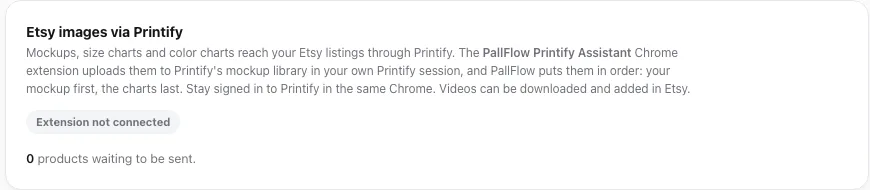
- Settings → Extensions → Etsy images via Printify shows whether the extension was seen recently (Extension seen … or Extension not connected), how many products are waiting (… products waiting to be sent.) and a Needs your attention list for sends that got stuck. Each row has Try again and Restore original photos, which puts back the photos the product had in Printify before PallFlow changed them.
- Scheduled products: pick a mockup with Send this in schedule; charts are sent automatically. See Schedule a product to publish later.
Credits and limits
- Sending images costs no credits.
- Etsy shows at most 20 photos. If the listing would go over 20, Printify's own mockups at the end are dropped first. Printify's automatic size-chart photo is removed so your own size chart is used.
- Each image is sent once. After it's on the listing the button disappears. Clicking again while a send is running doesn't create a second copy.
- Product videos are handled separately. See Product videos.
Troubleshooting
"Install the PallFlow Printify Assistant extension in Chrome to send this image to Etsy." or "Install or enable the PallFlow Printify Assistant extension to send this image to Etsy." Chrome can't reach the extension. Use Chrome, install or re-enable the extension, and click Download and set it up in the notice for the files. Your image stays queued.
"Open the PallFlow Printify Assistant extension and sign in, then send again." Open the extension from the Chrome toolbar, sign in with PallFlow, then click Send to store again.
"Sign in to Printify in Chrome, then send again" Shown in Needs your attention. Sign in to Printify in the same Chrome, then click Try again.
"Needs a look in Printify" Printify didn't accept the new photo order, and PallFlow put the original selection back. Check the product in Printify, then click Try again, or Restore original photos to undo PallFlow's changes.
"Could not be sent" The send failed several times. Click Try again.
"This job cannot be retried right now." Another send for the same product is still running. Wait for it to finish.
"The original photo selection could not be restored." PallFlow has no saved original selection for this product, or Printify refused the change. Fix the photos in Printify directly.
"Create the product in Printify first." The product doesn't exist in Printify yet. Finish step 5 so it's created, then send again.
"This image is already queued for the PallFlow Printify Assistant." or "Already sending this image — please wait for it to finish." A send for this image is already running. Wait for it.
"The Printify product is not yet connected to the store (it lacks an external.id). The publish process may not be complete." Shopify only: Printify is still publishing the product. Wait a few minutes after publishing and try again.
"Publish to enable sending" or "Publish the product first, then you can send the color chart." Shopify only: publish the product on step 5 first.