Browse the catalog
Search and filter the blank Printify products, read a product page, and start a new design from it.
Updated · 3 min read
On this page
The Product Catalog lists the blank Printify products you can put your design on: t-shirts, hoodies, sweatshirts and other apparel for men, women and kids. Every new product in PallFlow starts here.
Where to find it
Sidebar → Catalog (Catalog). The page is titled Product Catalog and marked Beta. Under the title you see how many products match your current filters.
You can browse without connecting anything. To start a design you need Printify connected and at least 1 credit.
Find a product
- Pick a category tab: All, Men, Women or Kids. Each tab shows how many products it has.
- Narrow it down with a sub-category chip, for example T-Shirts, Hoodies or Sweatshirts. All Men (or All Women, All Kids) clears the sub-category.
- Or type in Search products…. Search looks at the product name, brand and model, and the category counts follow your search.
- Change the order with the sort menu:
- Popularity (default) — Printify's own order.
- Latest — newest products first.
- Lowest price / Highest price — the page warns that price sorting is approximate. It doesn't follow the real price, so compare the From $… prices on the cards instead.
- Click 🔥 Bestsellers to show only Printify's bestsellers, ranked from #1. Click it again to switch it off.
- Scroll down: more products load automatically, 24 at a time.
Your filters are kept in the page address, so you can bookmark or share a filtered view.
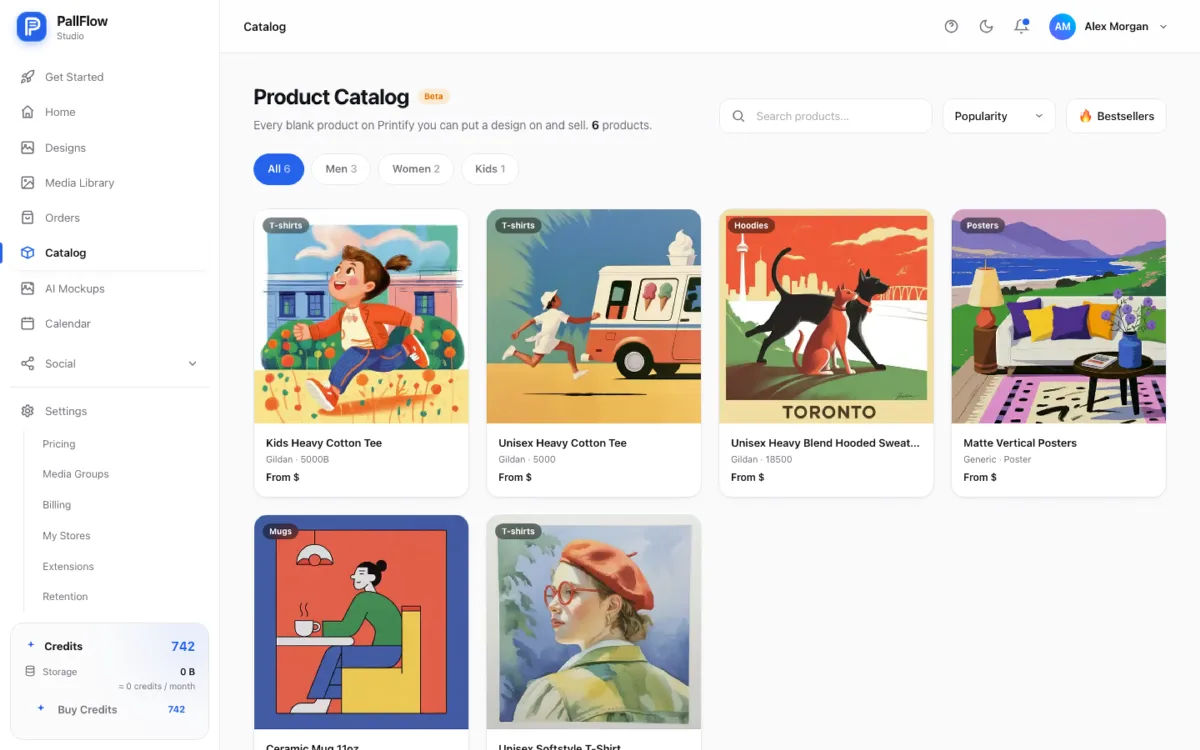
What a product card shows
- The product photo, with its sub-category in the top-left corner.
- 🔥 Bestseller #N when Printify ranks it as a bestseller.
- The product name and brand · model.
- From $… — the production cost per item from the cheapest provider (what you pay Printify, not your selling price).
- View details — click anywhere on the card to open the product page.
The product page
- Back to catalog returns to the list.
- Product images (N photos): click a photo to enlarge it. Use the arrows or your arrow keys to browse, and Esc to close.
- The brand and model, product name, and category.
- Starting cost — Cheapest provider — base + shipping: the lowest production cost plus first-item shipping.
- Print providers — how many providers make it (Compare in the next step).
- Production time — From fastest provider, for example ~3 days.
- Print areas — every position any provider can print, such as front, back or sleeves. Note that the design studio currently lets you place artwork on the front and back only.
- Start design → — creates a new draft and opens the provider picker.
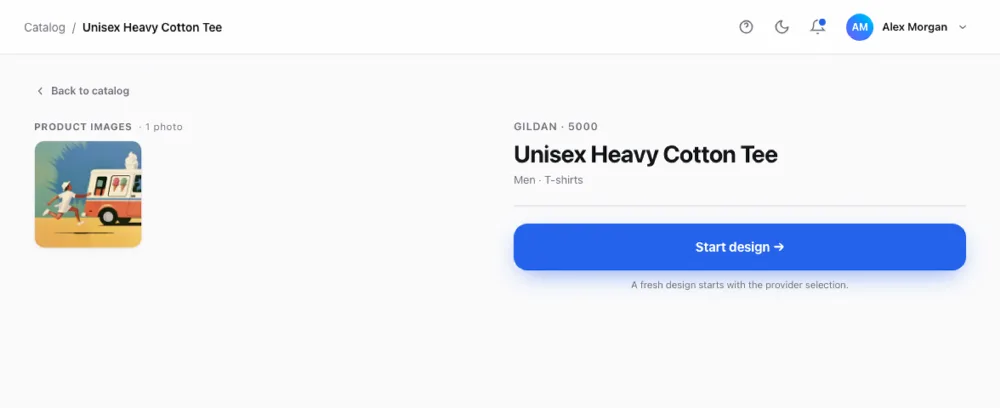
Start a design
- On the product page, click Start design →.
- If Printify isn't connected or you have no credits, you'll see Two quick things before you design. Fix it and come back.
- Otherwise PallFlow creates a draft and opens Pick a print provider. Continue with Step 1: Choose a product and print provider.
Start design → always starts a new draft, even when the note under it says Picking up where you left off on this product. If you have more than one unfinished design for this product, a yellow box lists them with Resume design #… — step … links. Otherwise resume drafts from Sidebar → Designs.
Credits and limits
- Browsing the catalog is free.
- Starting a design needs at least 1 credit in your balance, but nothing is charged.
- The catalog currently shows apparel (Men, Women and Kids). Other Printify product types aren't listed.
Troubleshooting
"No products found" Try a different category or search term. Clear the search box or pick All.
"Catalog is empty" The product list hasn't been loaded. Contact support at [email protected].
Start design → opens "Two quick things before you design" Connect Printify (how) or buy credits (how).
I clicked Start design → and got a second draft That's expected: each click creates a new draft. Delete extra drafts on the Designs page (how).