Brand profiles
Add your brand name, logo and chart color, link it to a store, and use the logo on size charts, color charts and reels.
Updated · 4 min read
On this page
A brand is a name, a logo and a chart background color. Link a brand to a store account and the size and color charts of products for that store use its logo and color. Brand logos can also be added as a watermark on reels.
Where to find it
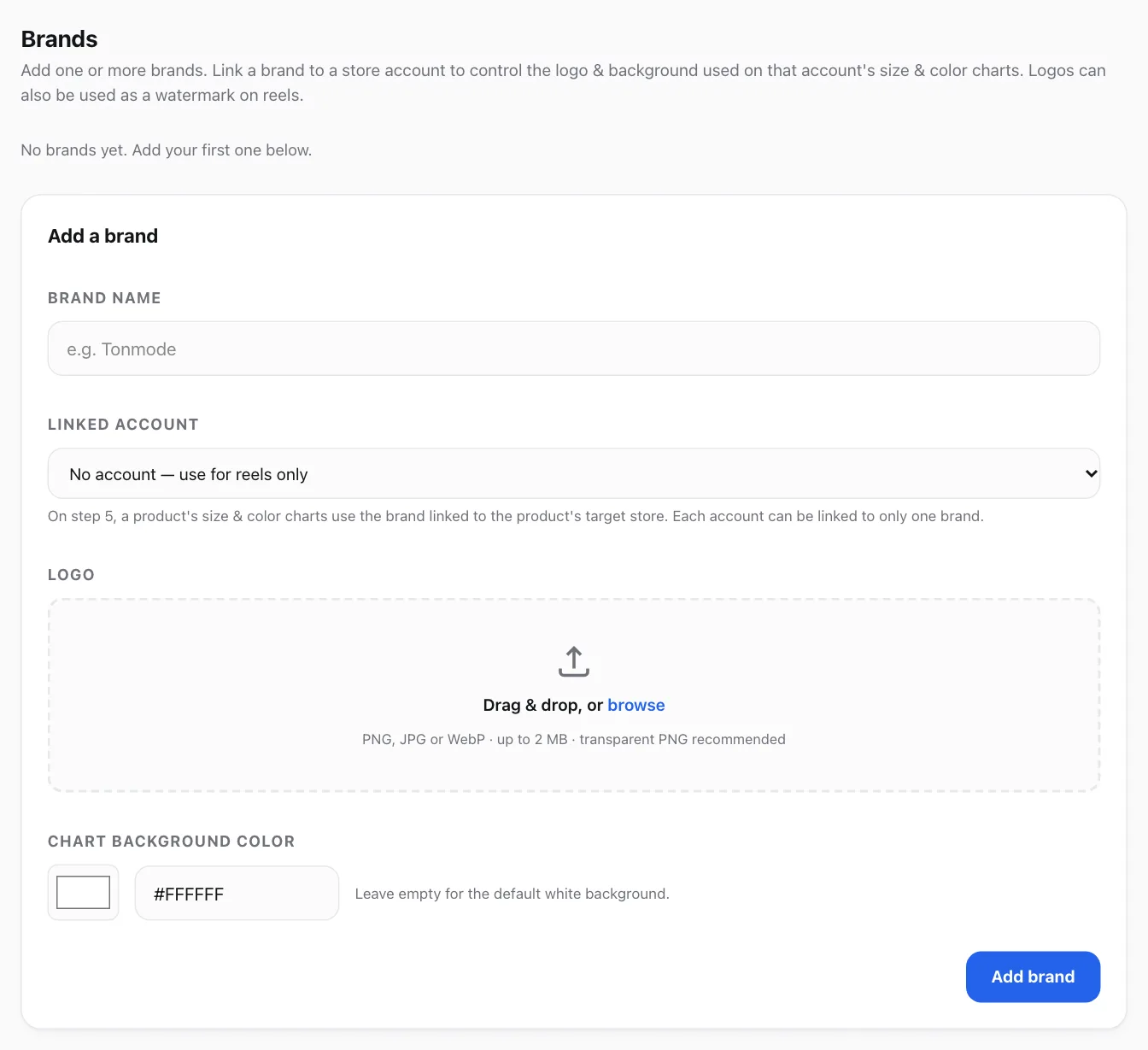
Click Settings → Brand in the sidebar, or open Brands. Your brands are listed at the top; the form to add or edit one is below.
Before you start
- To link a brand to a store, connect the Etsy or Shopify store under Settings → My Stores first.
- Have your logo ready as a PNG, JPG or WebP file of up to 2 MB. A transparent PNG looks best on charts and videos.
Step by step
- Open Settings → Brand. The form at the bottom is titled Add a brand.
- Type the Brand name (required, up to 120 characters). Charts show the name when the brand has no logo.
- Pick the Linked account. The list shows your Etsy and Shopify stores, for example Etsy · YourShop; disconnected stores are marked (disconnected). Choose No account — use for reels only if the brand is only for videos. Each store account can be linked to one brand.
- Under Logo, drag your file onto the box or click browse. Accepted: PNG, JPG or WebP, up to 2 MB. A preview appears.
- Set the Chart background color with the color picker, or type a hex code such as
#F5F0E8. It starts at#FFFFFF; leave it empty for the default white background. - Click Add brand.
What you'll see
The message Brand saved. appears. The brand is listed with its logo (or No logo), its linked account (or No account (reels only)) and its background color (or bg white).
Edit or delete a brand
- Click Edit next to a brand. The form changes to Edit brand with the brand's details. Change anything, tick Remove logo to drop the current logo, or upload a new logo to replace it. Click Save changes, or Cancel edit to leave it as it was.
- Click Delete and confirm. You'll see Brand deleted. The logo file is removed, and charts for that store go back to the unbranded look.
If a linked store gets disconnected, the brand stays linked to it and works again as soon as you reconnect the store.
Where your brand is used
Size and color charts (design step 5). A product's charts use the brand linked to the product's target store, the store you picked in step 2. The logo goes in the chart header; if the brand has no logo, its name is shown instead. The background uses the brand's color. If no brand is linked to that store, charts are unbranded with a white background.
Note: Charts you already generated keep the look they were made with. Generate them again in step 5 to apply a new logo or color.
Reels Studio. Under Brand logo (optional watermark), tick Show brand logo on this reel, choose a brand and pick a Position (top or bottom; left, center or right).
Social posts. In Compose, Logo on the video adds a brand logo when music turns your photos into a Reel.
Only brands with a logo appear in Reels Studio and Compose.
Credits and limits
- Brands are free and don't use credits.
- You can add as many brands as you like; each store account can have one.
- Logos count toward your storage (as Brand logos in the Storage box on the Plans page), like any other file. See Storage usage and storage fees.
Troubleshooting
"That account is already linked to another brand." Each store account can have only one brand. Edit the brand that already uses it, or link this brand to a different account.
"The logo field must be a file of type: png, jpg, jpeg, webp." Save your logo as PNG, JPG or WebP and upload it again.
"The logo field must not be greater than 2048 kilobytes." The file is larger than 2 MB. Export it smaller or compress it.
"The logo field must be an image." The file isn't a readable image. Open it in an image editor and save it again as PNG.
"The bg color field format is invalid."
Use a six-digit hex code such as #FFFFFF, or leave the field empty.
My chart doesn't show my logo. Check that the brand is linked to the store the product publishes to (step 2), then generate the chart again.
My brand isn't listed in Reels Studio. The brand has no logo. Edit it and upload one.