Bulk prompts
Queue up to 1,000 prompts at once and let PallFlow generate a set number of AI designs into your Media Library every day.
Updated · 4 min read
On this page
⚡ Bulk prompts turns a list of ideas into designs while you're away. You paste prompts, one per line, and PallFlow generates a set number of images from that queue every day. The images are added to your Media Library, ready for designs or automations.
Where to find it
Sidebar → Media Library → ⚡ Bulk prompts tab. Go to Media Library.
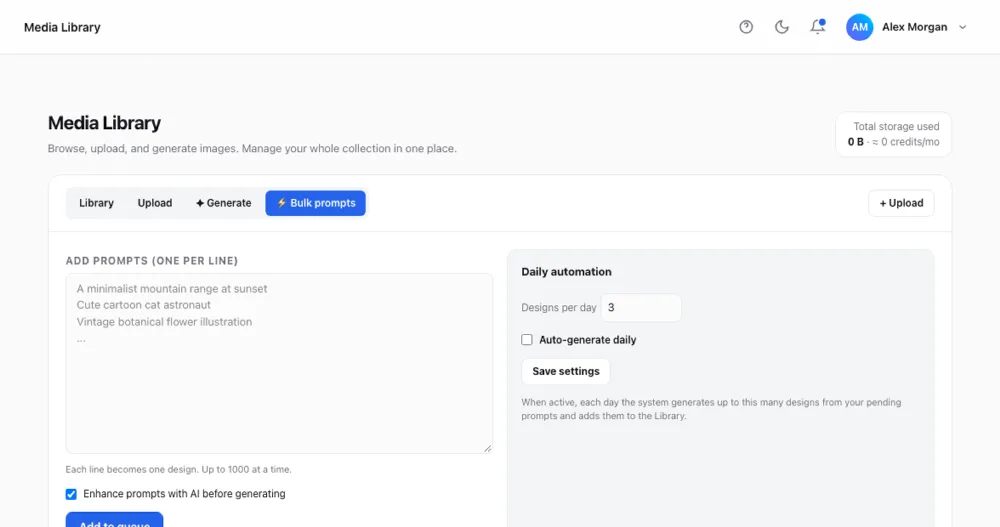
Step by step
Add prompts
- Open the ⚡ Bulk prompts tab.
- In Add prompts (one per line), type or paste your prompts. Each line becomes one design. Empty lines and repeated lines are skipped.
- Leave Enhance prompts with AI before generating ticked if you want AI to expand each short prompt into a detailed one before generating (no extra cost). Untick it to use your prompts word for word.
- Click Add to queue. The button briefly shows Added … ✓ and the prompts appear in the Prompt queue as pending.
You can add up to 1,000 prompts at a time. Lines beyond 1,000 are left out, so split longer lists into several batches.
Turn on daily generation
- In the Daily automation box, set Designs per day (1 to 50; the default is 3).
- Tick Auto-generate daily.
- Click Save settings. The button briefly shows Saved ✓.
Nothing is generated until Auto-generate daily is on. Once it is, PallFlow takes that many pending prompts, in the order you added them, once a day at 09:00 UTC, and generates them in the background. There's no button to run the queue right away; for a single image now, use the ✦ Generate tab.
Manage the queue
- The counters above the list show how many prompts are pending, processing, done and failed.
- In the list, a ✦ marks prompts that will be enhanced.
- Click ✕ on a row to remove that prompt. Removing a finished prompt doesn't delete its image.
- Clear pending removes every prompt that hasn't started yet, immediately and without asking.
What happens next
- Each processed prompt becomes an AI image in the Library tab (badge AI), with a transparent background and upscaled for print. Images are saved with no group; move them into a group if an automation should use them. See Upload and organize images.
- The prompt's status changes from pending to processing, then done or failed.
- A done row with an amber Not upscaled tag was saved at its original size because the upscale step failed. You weren't charged for it. Hover over the tag for the reason, then upscale it later from the Library. See Upscale images and remove backgrounds.
- A failed row has a red Error tag; hover over it for the reason. Failed prompts aren't retried automatically. Add the prompt again to retry it.
- The list shows up to 200 prompts: running and pending ones first, then failed and done.
Credits and limits
- 10 credits per image, the same as the ✦ Generate tab. You're only charged for images that were upscaled successfully.
- If your balance is too low when the daily run reaches a prompt, that prompt fails and the rest of the day's batch is tried one by one.
- Up to 1,000 prompts per Add to queue; Designs per day from 1 to 50; one run per day at 09:00 UTC.
- Generated images count toward your storage. See Storage usage and storage fees.
Want finished products, not just images? An automation can turn images from a media group into products on a schedule. See Create an automation step by step.
Troubleshooting
"Insufficient credits — … credits needed per image." Shown on a failed prompt's Error tag. Buy extra credits, then add the prompt again.
Nothing was generated today Check that Auto-generate daily is ticked and saved, and that you have pending prompts. The run happens once a day at 09:00 UTC; if you turned it on later, the first images arrive the next day.
My prompts weren't added If every line is empty, or the whole text is longer than 100,000 characters, nothing is added and the button simply goes back to Add to queue. Make sure each prompt is on its own line and split very long lists into batches.
Saved settings didn't stick Designs per day must be between 1 and 50. Other values are rejected even though the button shows Saved ✓. Reload the tab to see the saved value.
"Not upscaled" See What happens next above. Upscale the image later from the Library.