The AI Mockups page
Browse, filter, download and send every mockup and chart you have made, across all your products, on the AI Mockups page.
Updated · 4 min read
On this page
The AI Mockups page collects every finished mockup from all your products in one place: AI mockups, auto mockups, mockups you uploaded, Printify photos you kept with Use this, and your color and size charts. From here you can filter them, download them, and send them to your store.
Where to find it
Sidebar → AI Mockups, or go to AI Mockups.
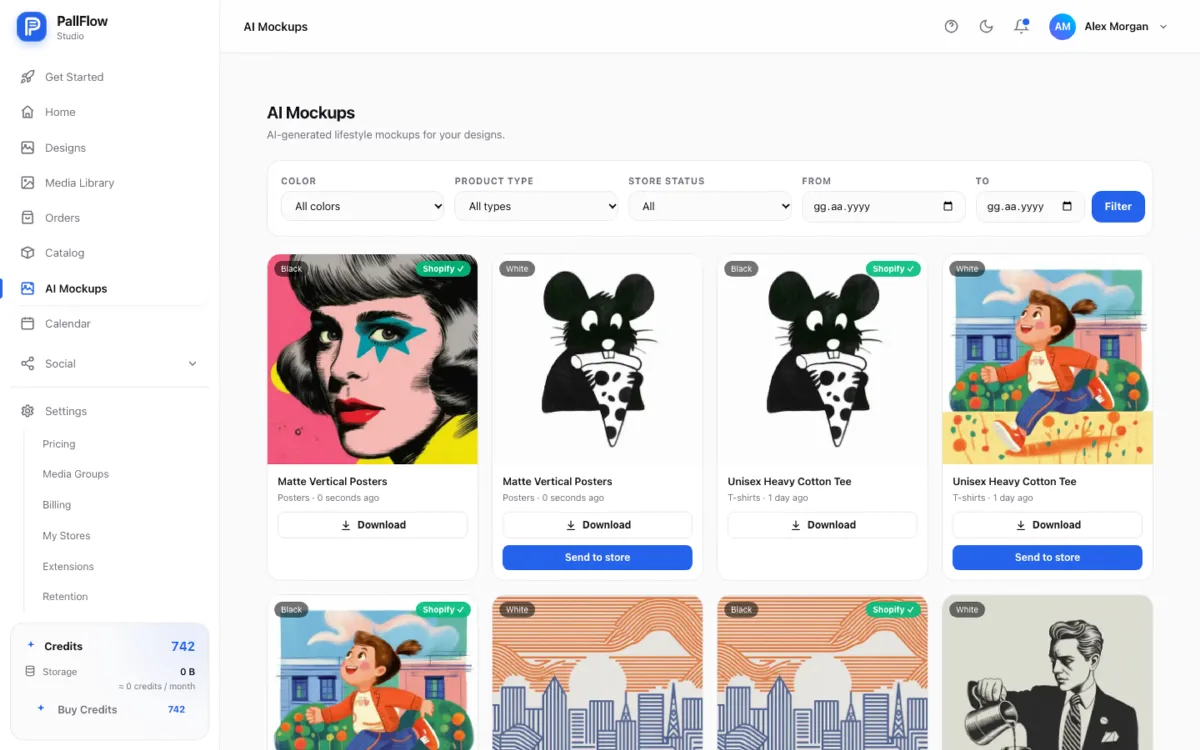
What's on the page
The filter bar at the top has:
| Filter | Options |
|---|---|
| Color | All colors or one of the colors your mockups use |
| Product type | All types or a product category, such as T-shirts or Mugs |
| Store status | All, Sent to Shopify, Sent to Etsy or Not sent |
| From / To | Only show mockups created between these dates |
Each card shows:
- the image (click it to see it large, with a Download button);
- the color label and, once the image is on your listing, a store badge such as shopify ✓ or etsy ✓;
- the product name, its product type and how long ago the mockup was made;
- a Download button;
- a Send to store button, or the note Design not published yet.
The page shows 24 mockups at a time, newest first, with page links at the bottom.
Step by step
Find a mockup
- Choose any combination of Color, Product type, Store status, From and To.
- Click Filter.
- To start over, set the filters back to All and click Filter again. If the list is limited to one product, you see Filtered by design #…; click clear to remove it.
Download a mockup
- Click Download on the card, or open the image and click Download in the large view.
- The file is saved with a name like
mockup-123-456(charts are namedcolor-chart-…orsize-chart-…). You can use it anywhere, for example to upload it by hand.
Send a mockup to your store
- Click Send to store on the card. The button shows Sending….
- For Shopify the image is added right away and the button changes to shopify ✓.
- For Etsy the image is queued for the PallFlow Printify Assistant and the button changes to queued for Etsy ✓. A notice in the bottom-right corner tells you whether the extension picked it up.
The rules are the same as on step 5. See Send product images to Shopify and Etsy.
What you'll see
- Send to store appears when the image can go to the listing: for Shopify once the product is published, for Etsy once the product exists in Printify (even before you publish).
- Design not published yet means the product isn't live yet (Shopify) or hasn't been created in Printify yet (Etsy). Publish it on step 5 first.
- Once an image is confirmed on your listing the button disappears and the store badge shows. Store status → Sent to Etsy only lists images whose send has finished; queued images still count as Not sent until then.
- Color and size charts are listed here too. Their color label reads
_colorchartor_sizechart, and they also show up with those names in the Color filter. - You can't delete mockups from this page.
If you have no mockups yet you'll see No mockups yet with the hint Generate mockups in step 5 (Preview & publish) of any design.
Credits and limits
- Browsing, downloading and sending cost no credits.
- Mockups and charts count toward your monthly storage. See Storage usage and storage fees.
Troubleshooting
"Design not published yet" Open the product from Designs, go to step 5 and publish it (Shopify), or let step 5 create it in Printify (Etsy). Then come back and click Send to store.
"Could not send to store." or another message in a pop-up The send failed and the message explains why. The most common causes and fixes are in Send product images to Shopify and Etsy.
"Install the PallFlow Printify Assistant extension in Chrome to send this image to Etsy." Etsy images need the Chrome extension. Click Download and set it up in the notice, or see Upload Etsy listing images with the Printify Assistant.
A filter shows nothing The filters combine. Set Store status to All, clear the dates and try again.