Finding your way around the app
A tour of the sidebar, the top bar, the Settings menu and the credits box, so you always know where to click.
Updated · 3 min read
On this page
Every PallFlow page has the same frame: the sidebar on the left and the top bar across the top. This article explains what each part is for.
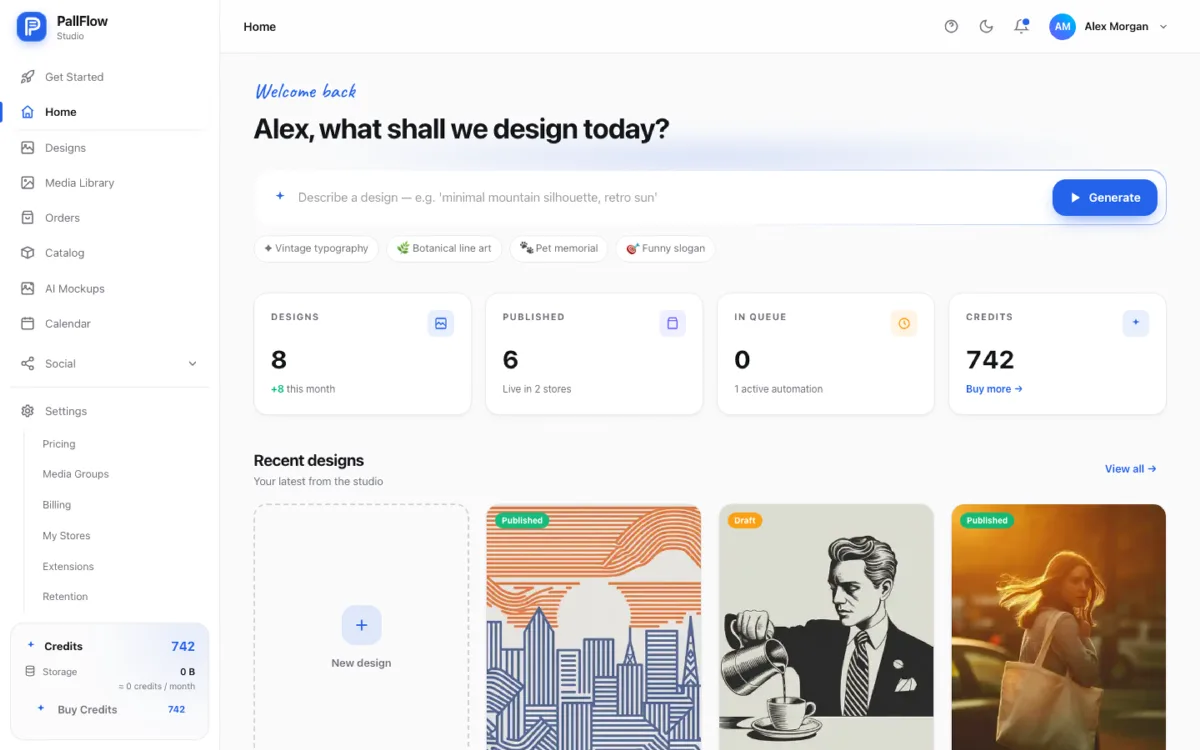
The sidebar
Main menu
| Item | What it's for |
|---|---|
| Get Started | The setup checklist. Finished steps get a tick. |
| Home | Your dashboard: numbers, recent designs and a quick AI image prompt. |
| Designs | Every product you're building or have published. |
| Media Library | Your uploaded artwork and AI-generated images. |
| Orders | Orders from your Printify account. |
| Catalog | Blank products to print on. New products start here. |
| AI Mockups | The mockups you've generated, across all products. |
| Calendar | The eCommerce calendar of key shopping dates. |
Social
Click Social to open or close its list:
- Connections — connect your social media accounts.
- Compose — write and schedule a post.
- Reels Studio — make a short video from your products.
- Reels List — your finished reels.
- Posts — scheduled, published and draft posts.
- Calendar — your posts on a calendar.
- Analytics — how your posts perform.
- Billing — monthly fees for connected social accounts.
Settings
Click Settings for your profile, password and appearance. Below it are these pages:
- Pricing — margin profiles that set your sale prices.
- Media Groups — groups for your uploaded and AI-generated images.
- Billing — your personal or company details for invoices.
- My Stores — connect Printify, Shopify and Etsy.
- Extensions — download the PallFlow Chrome extensions.
- Retention — rules that remove products that don't sell within a set period.
- Automations — products created and published on a schedule.
- Brand — your brands and logos, used on size and color charts and reels.
- Plans — your plan, credit costs, storage and credit packs.
- Credits History — every credit added or spent.
Note: There are two Billing pages. Social → Billing is about social account fees. Settings → Billing holds your invoice details.
The Credits box
At the bottom of the sidebar you always see:
- Credits — your current balance.
- Storage — how much space your files use, and the expected monthly storage fee in credits. Click it to see the details on the Plans page.
- Buy Credits — opens Settings → Plans, where you can upgrade or buy a credit pack.
The top bar
From left to right:
- Page name — where you are now.
- ? — opens this Help Center in a new browser tab.
- Theme (sun or moon icon) — switches between light and dark mode. Your choice is saved in this browser only.
- Your name and initials — opens a menu with your email, Settings and Log out.
Tabs on Settings pages
Most Settings pages show a row of tabs at the top: Pricing, Media Groups, Billing, My Stores, Retention and Automations. Extensions, Brand, Plans and Credits History aren't in that row; open them from the sidebar.
On a phone or small screen
The sidebar is hidden to save space. Tap the menu button (three lines) in the top-left corner to open it. Tap the dimmed area next to it to close it again.
Tips
- Lost? Get Started is always the first sidebar item and shows what to do next.
- The Help Center opens in its own tab, so you don't lose your place in the app.
- When you start a new product, PallFlow sends you to the Catalog first to pick a blank product.