Manage your products on the Designs page
Find, filter, resume and delete your products, and copy published products to another Shopify or Etsy store.
Updated · 4 min read
On this page
The Designs page lists every product you've started, in progress or published. From here you resume drafts, open published products, delete products, and copy published products to another store.
Where to find it
Sidebar → Designs (My Designs). The page is titled My Designs.
What you see
Each card shows:
- The preview image, or the product's catalog photo if there's no preview yet.
- A status badge: In progress, Ready, Completed or Published.
- Step N/5 for products that aren't published yet.
- 📌 N pins for products shared on Pinterest. Point at it to see how many are published and how many are scheduled.
- The product name, when it was last changed, and · published for published products.
- Resume (drafts) or View (other products), and a trash icon.
Products with the most recent activity come first, 20 per page (Showing X–Y of Z).
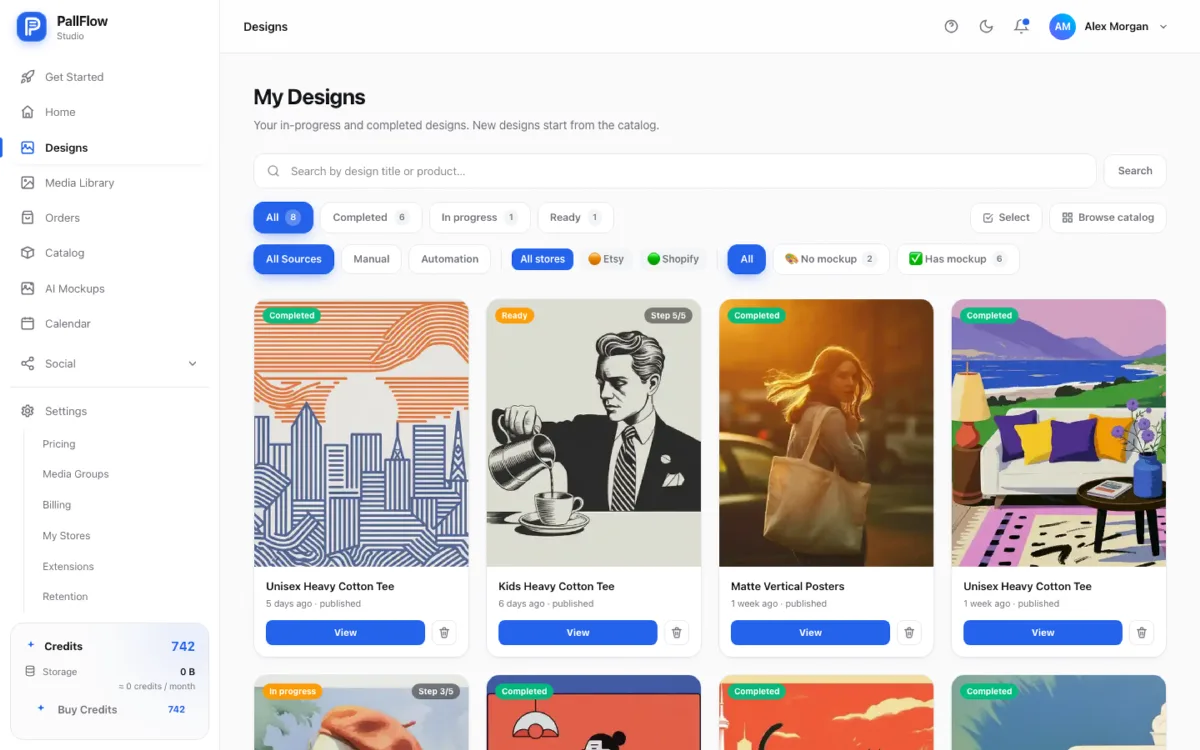
Search and filter
- Search by design title or product… finds products by listing title or by product name, brand or model. Click Search; the ✕ clears it.
- Status tabs: All plus one tab per status you have (for example In progress and Completed), each with a count.
- Source: All Sources, Manual or Automation. With Automation you can also pick a single automation (a green dot means active).
- Store: All stores, 🟠 Etsy or 🟢 Shopify.
- Mockups: All, 🎨 No mockup or ✅ Has mockup, with counts.
- Pinterest: 📌 Pinterest: all, Not shared or Shared, with counts. Not shared lists the products that have no scheduled or published pin yet; failed or cancelled pins don't count.
- Browse catalog opens the Catalog to start a new product.
Open a product
- Resume opens a draft at the furthest step you reached.
- View opens a published or ready product in step 5.
Delete products
- Click the trash icon on a card.
- Read the window Delete this design? — This action cannot be undone. A warning tells you if the product is linked to Printify or already published.
- Click Delete. You'll see Design deleted.
When you delete a product, PallFlow also asks Printify to remove it (and takes it off your store first if it was published), then deletes it from PallFlow. If Printify can't be reached, PallFlow still deletes its own copy without telling you. Check Printify and your store afterwards.
To delete several at once:
- Click Select. Checkboxes appear on the cards.
- Tick the products, or use Select all. The bar shows N selected.
- Click Delete selected, read the warning in Delete N designs?, and click Delete All.
You can delete up to 100 products at once. Click Cancel to leave selection mode.
Copy to another store
Sell a published product in a second store, for example a Shopify version of an Etsy product, without redoing the wizard.
- Click Select and tick the published products to copy. Products that aren't published are skipped.
- Click Copy to another store.
- Under Target store, choose the connected Shopify or Etsy store.
- Under Printify shop, choose the Printify shop that publishes to that store. PallFlow doesn't check that they match, so pick carefully.
- Optional: tick collections (Shopify) or one section (Etsy). You can leave this empty.
- Click Copy (N). You'll see N product(s) are being copied to Shopify. They will publish automatically.
What happens next:
- Each copy becomes a new product on the Designs page with status Ready.
- In the background PallFlow creates it in the chosen Printify shop and publishes it. The copy then shows as Completed.
- The copy keeps the artwork, colors and sizes, prices and listing text. Mockups are copied too; color and size charts and one mockup are queued for the new store.
- Products already in the target store's platform (or already copied there) are skipped: (N already on Etsy, skipped.)
- If a copy stays Ready for a long time, open it and check step 5, or contact [email protected].
Credits and limits
- Managing, deleting and copying products is free.
- Up to 100 products per bulk delete.
- Only published products can be copied, and each product only once per platform.
Troubleshooting
"Some designs could not be deleted: …" The listed products failed. Try again; if it repeats, contact support.
"Select a target store." or "Select a Printify shop." Fill in both fields in the copy window.
"No connected stores. Connect a Shopify or Etsy store first." Connect a store in Settings → My Stores (Shopify, Etsy).
"No Printify shops found" or "Could not load shops" Check your Printify connection in Settings → My Stores and that your stores are added in Printify.
"No published designs selected." Only published products can be copied.
"All selected products are already on Shopify." (or Etsy) Every selected product is already in that platform or was copied there before.
"Invalid target store." The store is no longer connected. Reconnect it and try again.