Reconnect a Shopify store or switch it to your own app
Fix a Shopify store that shows Needs attention or Disconnected, update your app credentials, or move an older store to your own app.
Updated · 5 min read
On this page
Shopify stores on My Stores are connected in one of two ways. Stores with the Own app badge use the private app you created in the Shopify Dev Dashboard; this is how stores are connected today. Stores without the badge were connected earlier through the PallFlow app. This article explains how to reconnect an own-app store, update its credentials, and switch an older store to your own app. Your designs, automations and settings for the store are kept in every case.
Where to find it
Settings → My Stores → Shopify, in the row of the store: My Stores.
Before you start
To switch a store, or to replace its credentials, you need an app for that store that's installed on it. Steps 1 to 3 of Connect Shopify with your own app show how to create one.
Step by step
Reconnect a store that shows Needs attention
Needs attention means Shopify stopped accepting your app's credentials, so nothing is published to the store. The note under the store reads: "Shopify no longer accepts your app's credentials for this store, so nothing is published to it." This usually happens when the app was uninstalled or its Client secret was rotated.
- In the Dev Dashboard, open your app and check the Installs card. Install the app on the store again if needed.
- If you rotated the Client secret, update it as described below instead.
- Otherwise click Reconnect next to the store. PallFlow tries again with the saved Client ID and secret.
When it works, you see "Shopify store connected with your own app." If Shopify still refuses, the message appears at the top of the page.
Reconnect a store that shows Disconnected
The line under the store name says why:
- Disconnected … — you clicked Disconnect. Click Reconnect to continue where you left off.
- App removed … — your app was uninstalled from the store in Shopify. Install it on the store again from the Dev Dashboard first, then click Reconnect.
Update your app's credentials
Use this when you rotated the Client secret, or when you want the store to use a different app.
- Click Update app credentials ▾ under the store.
- Client ID shows the saved value. Change it only if you switch to another app.
- Paste the secret into Client secret (Paste the new secret).
- Click Save.
You'll see "Shopify store connected with your own app." If something is wrong, the message appears under the form. The app must be installed on this same store. To connect a different store, use + Connect Store.
Switch a store from the PallFlow app to your own app
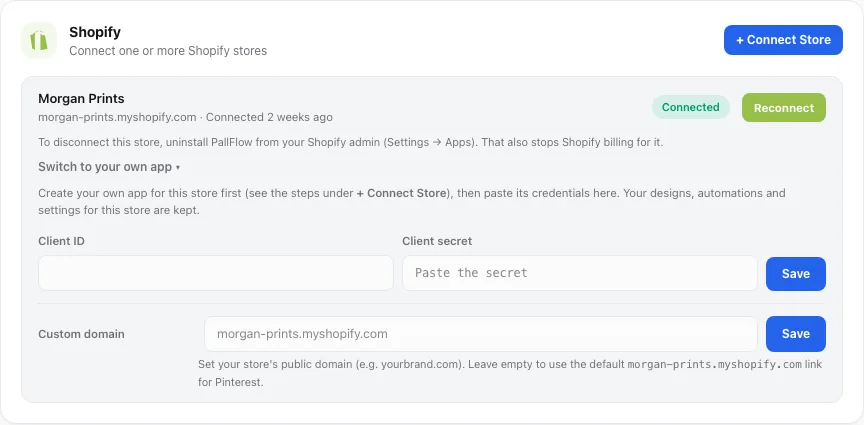
Stores connected earlier through the PallFlow app have no Own app badge and show Switch to your own app ▾.
- Create your own app for this store and install it (steps 1 to 3 of Connect Shopify with your own app, also shown under + Connect Store).
- Click Switch to your own app ▾ under the store.
- Paste your app's Client ID and Client secret (Paste the secret).
- Click Save.
You'll see "Your Store Name now uses your own app. Its designs, automations and settings are kept." The store now has the Own app badge, and you can disconnect and reconnect it from PallFlow like any own-app store. You may uninstall the old PallFlow app from your Shopify admin (Settings → Apps) afterwards; your own-app connection isn't affected.
Older stores connected through the PallFlow app
If you keep an older store on the PallFlow app for now:
- Reconnect asks Shopify to authorise the PallFlow app on that store again. Approve it in Shopify for the same store.
- The store can't be disconnected in PallFlow. The note under it tells you to uninstall PallFlow from your Shopify admin (Settings → Apps) instead. Or switch it to your own app first; then Disconnect is available.
- If the PallFlow app was uninstalled in Shopify, the store shows Disconnected and App removed, with a Remove link. To use it again, click + Connect Store and connect the same store address with your own app. PallFlow reuses the store's entry, so its designs, automations and settings come back.
What happens next
A reconnected or switched store is back to Connected. It appears again under Your connected store in design step 2, and PallFlow resumes collections, mockups and videos for it. PallFlow then renews the store's access by itself with your saved credentials.
Credits and limits
- Reconnecting and switching are free.
- One app per store. A store can be connected to one PallFlow account at a time.
Troubleshooting
"Shopify didn't accept this Client ID and Client secret for your-store.myshopify.com. …" After Reconnect, this usually means the secret was rotated. Paste the new one under Update app credentials ▾. Also check that the app is still installed on the store.
"Shopify only gives access to an app created by the account that owns your-store.myshopify.com. …" The app you're switching to was created with a staff or collaborator account. Create it again while signed in as the store owner.
"Your app is missing these permissions: …" Add the missing scopes in a new version of your app, release it, approve the update in your Shopify admin and try again.
"To connect this store, install PallFlow from the Shopify App Store." The PallFlow app can't be reconnected to this store. Connect it with your own app instead: + Connect Store, same store address.
"Shopify returned a different store than the one you reconnected. Please try again." During Reconnect you approved a different store in Shopify. Try again and choose the same store.
"This Shopify store is already connected to another PallFlow account. Sign in to that account to use it." Another PallFlow account has this store connected. Disconnect it there first.