The Home dashboard
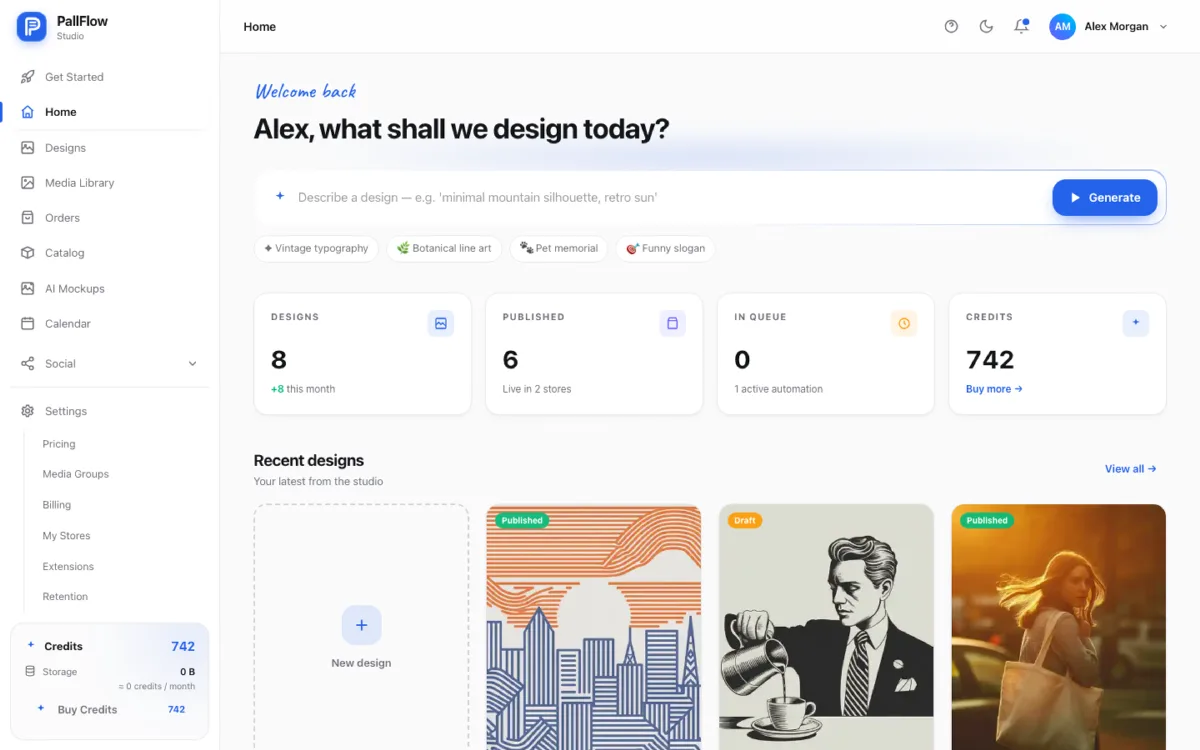
What the Home page shows: the quick image prompt, your design, publishing and credit numbers, recent designs and active automations.
Updated · 3 min read
On this page
Home is the page you see after you sign in. It gives you a quick prompt for AI images, four key numbers, your latest designs and your running automations.
Where to find it
Sidebar → Home, or click the PallFlow logo at the top of the sidebar: Home.
What you'll see
The prompt box
At the top, under Welcome back and "…, what shall we design today?", there's a text box: Describe a design — e.g. 'minimal mountain silhouette, retro sun'.
- Type an idea, or click one of the suggestions below the box: Vintage typography, Botanical line art, Pet memorial or Funny slogan. A suggestion replaces what's in the box.
- Click Generate.
- PallFlow opens the Media Library on the ✦ Generate tab with your text already in the prompt field.
- Adjust the settings there and start the generation.
Nothing is generated and no credits are used until you start it in the Media Library. An AI image costs 10 credits.
Your numbers
Four cards show where you stand:
| Card | What it counts | Line underneath |
|---|---|---|
| Designs | All your designs, drafts included. | +N this month, or Start designing → (opens the Catalog) if you made none this month. |
| Published | Finished designs that were created in Printify. | Live in N stores (the number of different Printify shops you published to), or No published products yet. |
| In queue | Designs being published right now. | publishing while something is in progress, otherwise the number of active automations, or Set up automation →. |
| Credits | Your current credit balance. | Buy more → opens the credit packs on the Plans page. |
Recent designs
Recent designs shows your three most recently changed designs, plus a New design card that opens the Catalog.
- Each card shows the product image or preview, the listing title (or the product name, or Untitled design) and when you last changed it.
- A Draft badge means the design isn't finished. Published means it went through the last step.
- Click a card to open the design wizard at the step where you left off (Resume for drafts, View for published designs).
- For designs created in Printify, Printify ↗ opens the product in Printify in a new tab.
- View all → opens the Designs page.
With no designs yet you'll see No designs yet and Browse catalog →.
Active automations
If you have active automations, up to three appear under Active automations (Running on schedule), most recently run first. Each shows its name, how many products it has created and when it last ran. Click Logs to see that automation's run history, or View all → for the Automations page. The section is hidden when no automation is active.
Tips
- Home doesn't change your work. It only shows it and links to the right pages.
- New account? Home doesn't show the setup steps. Open Get Started from the sidebar to see what's left to do.
- The numbers update each time you open or reload Home.