Posts and the social calendar
Find every social post by status, open details, edit, reschedule or cancel posts and drag scheduled posts on the calendar.
Updated · 4 min read
On this page
Every post and pin you create lands on Posts, where you can filter by status, open details, edit, reschedule or cancel. The Calendar shows your dated posts by month and lets you drag scheduled posts to another day.
Where to find it
- Sidebar → Social → Posts: Posts
- Sidebar → Social → Calendar: Content Calendar
The Posts page
Use the tabs at the top to filter:
| Tab | Shows |
|---|---|
| All | Every post |
| Not sent yet | Scheduled, queued and failed posts |
| Scheduled | Posts waiting for their date |
| Published | Posts that went live |
| Failed | Posts the platform rejected |
| Cancelled | Posts you cancelled or deleted |
Each card shows the first image or video, colored dots for the platforms, the account (plus a count if there are more), a status badge, the start of the text, and the date and time with its timezone. Nine posts show per page; use ← Prev and Next → or the page numbers.
Status badges
| Badge | Meaning |
|---|---|
| Scheduled / Queued | Waiting to go out at the set time |
| Published | Live on the platform |
| Failed | Not published (you're notified with the reason) |
| Cancelled | Won't be published |
| partial | Published on some platforms only |
| processing / publishing | Being sent right now |
Post details
- Click a card's image or Details. The Post details panel opens with Status, Scheduled, Accounts, Text and Media.
- For scheduled, queued and failed posts you can also:
- Click ✏️ Edit post (accounts, media, text) to open it in Compose (or Pin Studio for pins) and change it.
- Under Reschedule, set a new Date, Time and Timezone and click Save new schedule. This works for scheduled posts only.
- Click Cancel post and confirm. The post won't be published.
Note: For posts with different text per platform, the Text field on this panel may read "(no text)". Open the post from the Calendar or with Edit to see each platform's text.
Delete a post
Click the bin icon on a card and confirm Delete. The post won't be published and moves to Cancelled. This can't be undone. Published posts can't be deleted from PallFlow; remove them on the platform itself.
The Calendar
- Open Social → Calendar. The current month opens, Monday to Sunday.
- Use ← and → to change month. Today's date is highlighted.
- Each day lists its posts with the time and platform dots; a number shows how many posts the day has. Published posts have a green border.
- Click a post to open the same Post details panel as on Posts.
- To move a scheduled post, drag it to another day. It keeps its time and timezone.
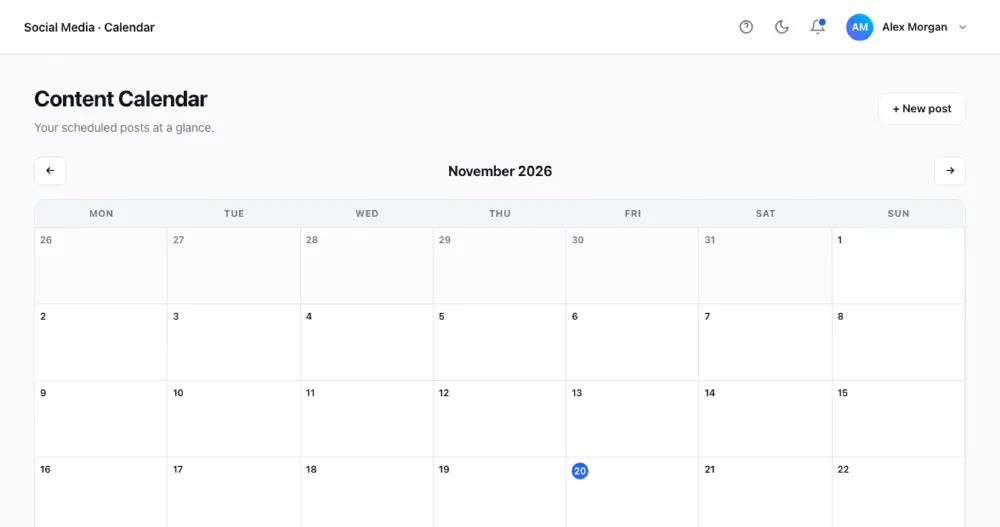
The calendar shows posts that have a date: scheduled, queued and published. Posts you published straight away, failed posts and cancelled posts don't appear on it; find them on Posts. Times are shown in the timezone you picked for each post.
What happens next
When a scheduled post goes out, its status changes to Published and you get a notification. If it fails, the status changes to Failed and the notification includes the platform's reason. See Analytics and notifications.
Credits and limits
Editing, rescheduling and cancelling posts don't use credits.
Troubleshooting
"Only scheduled posts can be moved." Failed posts can't be rescheduled or dragged. Open them with Edit, set the date under Schedule for later and click Update.
"This post is publishing right now and cannot be cancelled." It's already being sent. Wait a moment and check whether it went live.
"Only scheduled or draft posts can be cancelled." / "Only scheduled or draft posts can be edited." Published and cancelled posts can't be changed. Create a new post in Compose instead.
A post failed Read the reason in the notification or email ("Your post failed to publish"). Fix the cause (for example a reconnect or a different image), then create the post again in Compose, or edit it and set a new time.
"Could not load posts." Reload the page. If it persists, contact [email protected].