Manage and disconnect stores
Read the status of your Printify, Shopify and Etsy connections on My Stores, and disconnect, reconnect or remove them safely.
Updated · 5 min read
On this page
My Stores shows every connection PallFlow uses: your Printify account, your Shopify stores and your Etsy shops. Here you check that they work, and you disconnect, reconnect or remove them. Disconnecting a store never deletes its designs, automations or settings in PallFlow.
Where to find it
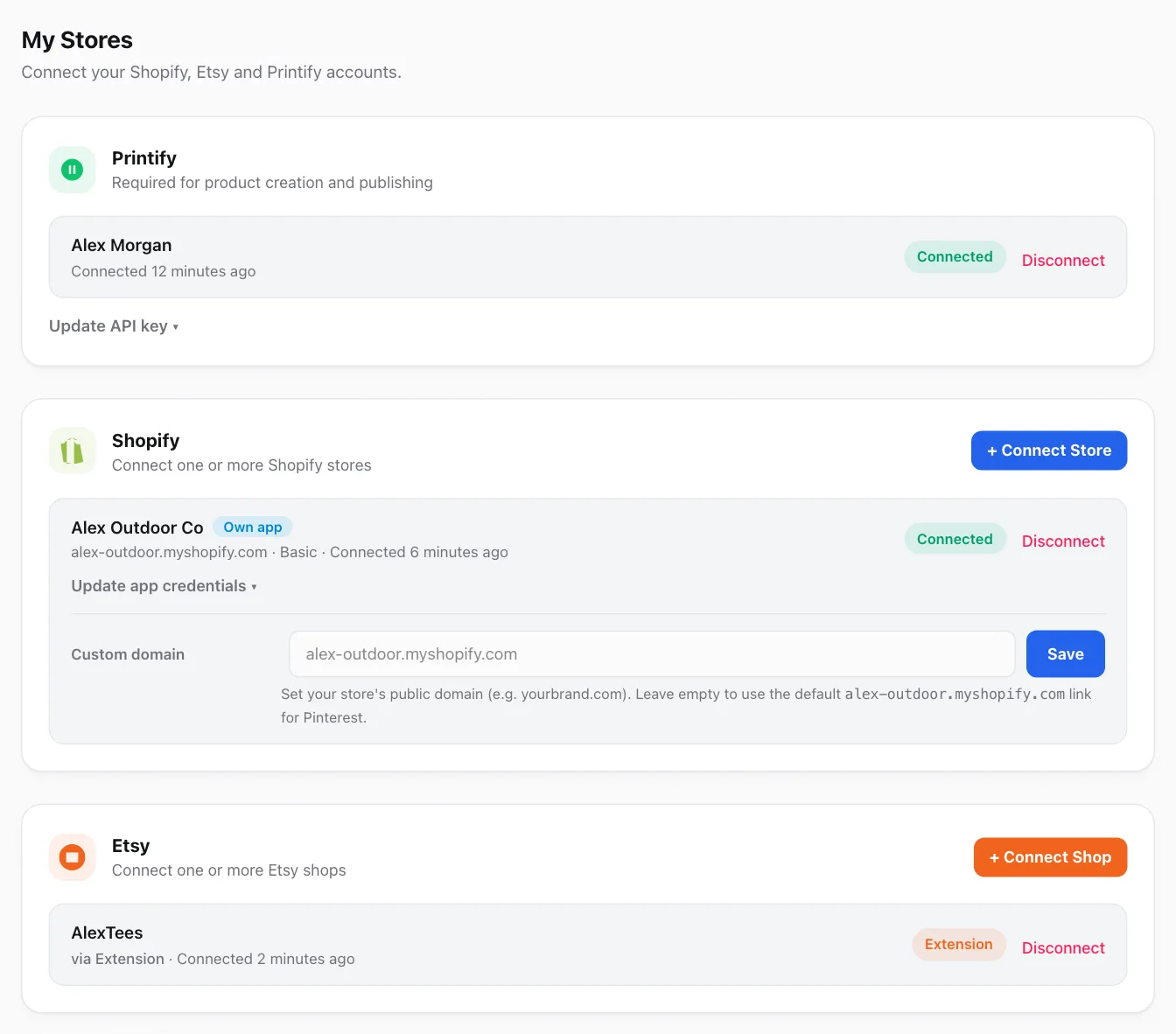
Settings → My Stores: My Stores. The page is titled My Stores with the note "Connect your Shopify, Etsy and Printify accounts."
What you'll see
The page has three cards:
- Printify — Required for product creation and publishing. Shows your Printify account, or the form to connect it.
- Shopify — Connect one or more Shopify stores. Has the + Connect Store button. With no store you'll see No Shopify stores connected yet.
- Etsy — Connect one or more Etsy shops. Has the + Connect Shop button. With no shop you'll see No Etsy shops connected yet.
Green messages at the top confirm what you just did. Red messages explain what went wrong.
Status labels
| Label | Where | What it means |
|---|---|---|
| Connected (green) | Printify, Shopify | The connection works. |
| Own app (blue, next to the name) | Shopify | Connected with your own Dev Dashboard app. |
| Extension (orange) | Etsy | Connected with shop name and ID; the Chrome extensions handle images and sections. |
| Needs attention (amber) | Shopify | Shopify stopped accepting your app's credentials. Nothing is published to the store. |
| Disconnected (amber) | Shopify, Etsy | You disconnected it, or the app was removed in Shopify. Nothing is published to it from PallFlow. |
The grey line under each name adds details: the .myshopify.com address and Shopify plan, via Extension for Etsy, and Connected …, Disconnected … or App removed … with the time.
Step by step
Disconnect a Shopify store (own app)
- Click Disconnect next to the store.
- Confirm: "Disconnect Store Name? Nothing will be published to it until you reconnect. Its designs, automations and settings are kept."
- You'll see "Store disconnected. Your designs and settings for it are kept. To revoke access completely, also uninstall your app from your Shopify admin."
PallFlow deletes the store's access but keeps your app's Client ID and secret, so Reconnect works in one click. To cut access completely, also uninstall your app in your Shopify admin.
Disconnect an Etsy shop
- Click Disconnect next to the shop.
- Confirm: "Disconnect Shop Name? PallFlow will stop publishing to it. Your designs, automations and settings for this shop are kept, and you can reconnect any time."
- You'll see "Shop disconnected. Your designs and settings for it are kept."
Remove a disconnected store from the list
After you disconnect, the link changes to Remove.
- Click Remove.
- Confirm: "Remove Name from your list? Its designs, automations and settings are kept, and connecting this store again brings them back."
- You'll see "Store removed from your list. Connecting it again brings back its designs and settings." (for Etsy: "Shop removed from your list. …").
Nothing is deleted. Connect the same store address or the same Etsy shop ID again later, and everything comes back.
Reconnect
- Shopify (own app): click Reconnect. See Reconnect a Shopify store or switch it to your own app.
- Etsy: click Reconnect. PallFlow uses the saved shop name and ID, and you'll see "Shop Name: connected. Products reach it through your Printify shop."
- A removed store: connect it again with + Connect Store or + Connect Shop.
Disconnect Printify
- Click Disconnect in the Printify card.
- Confirm Disconnect this Printify account?
- You'll see "Store disconnected."
Unlike stores, the Printify connection and its token are deleted. To connect again, paste a token as in Connect Printify with an API token. Use a token from the same Printify account to keep managing your existing products.
Stores connected through the PallFlow app
Shopify stores without the Own app badge can't be disconnected here. Uninstall PallFlow from your Shopify admin (Settings → Apps), or switch the store to your own app first. See Reconnect a Shopify store or switch it to your own app.
What happens after you disconnect a store
- Products already in your store stay there. PallFlow doesn't delete anything in Shopify, Etsy or Printify.
- The store disappears from Your connected store in design step 2, and the wizard won't publish to it.
- PallFlow stops putting products into its collections or sections and stops sending mockups and videos to it.
- Automations aren't paused. Printify does the publishing, and disconnecting in PallFlow doesn't change your store's link in Printify. An active automation that uses that store's Printify shop keeps creating products there. Pause or edit it under Settings → Automations if you want everything to stop. To unlink the store completely, also remove it in Printify.
Disconnecting Printify stops all designing and publishing: the Two quick things before you design page comes back, and automations log "No Printify connection found."
Credits and limits
- Connecting, disconnecting and reconnecting are free.
- There's no limit on the number of Shopify stores or Etsy shops.
- One Printify account per PallFlow account.
- A Shopify store can be connected to one PallFlow account at a time.
Troubleshooting
"Select the store to publish to before publishing." The store for this product isn't connected (or was disconnected) on My Stores, or none was picked. Reconnect it, then choose it under Your connected store in design step 2.
"Custom domain cleared — using *.myshopify.com." when you wanted to save a domain
The domain needs a dot, for example yourbrand.com. Type it again and click Save.
I removed a store and want it back Connect it again with the same store address (Shopify) or the same shop ID (Etsy). Its designs, automations and settings return.
I disconnected Printify by mistake Paste your token again in the Printify card. If you no longer have it, create a new one in Printify.