Create a reel in Reels Studio
Turn product photos into a vertical 9:16 video with transitions, music and your brand logo, ready for Instagram Reels, Pinterest or your store.
Updated · 4 min read
On this page
Reels Studio turns your photos into a vertical 9:16 video (a "reel"). You choose the order of the photos, the transitions, how long each photo shows, and optionally music and your brand logo. Finished reels can be downloaded, posted to your social accounts, or added to a product listing as its video.
Where to find it
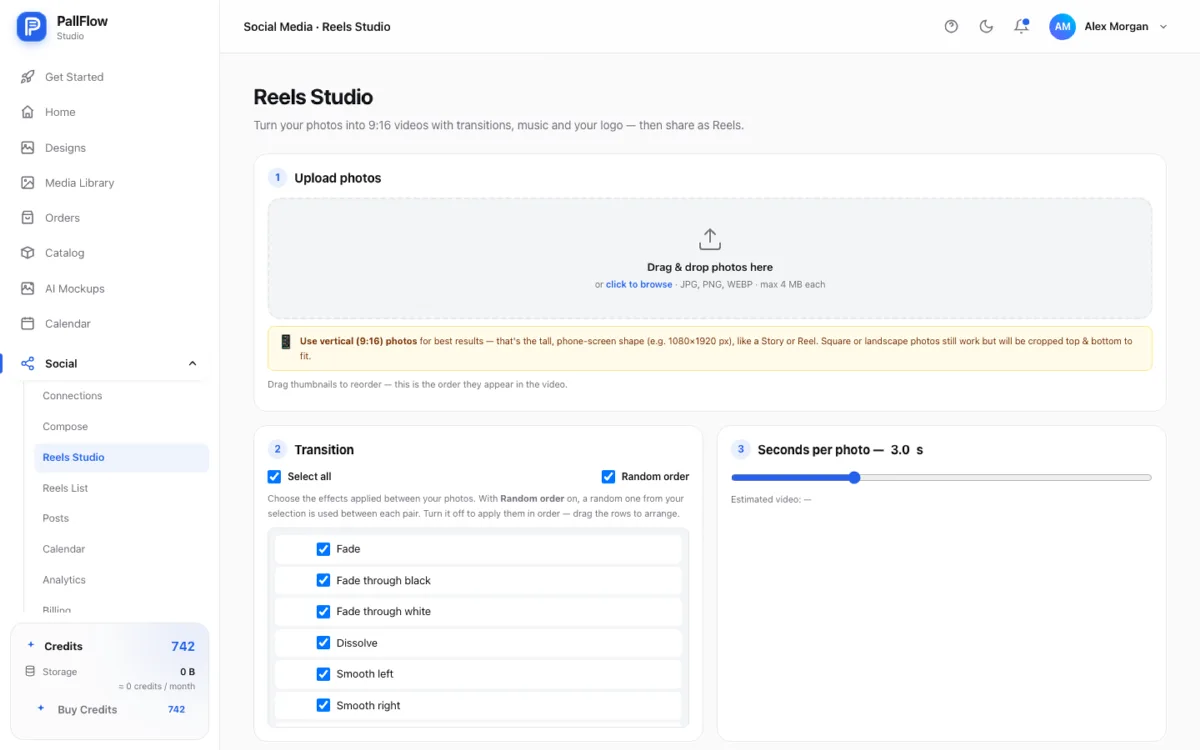
Sidebar → Social → Reels Studio: Reels Studio.
You can also start from a product: in step 5 of the product wizard, tick the photos you want and click Create Reel. Reels Studio opens with those photos already added.
Before you start
- You don't need a connected social account to make or download a reel. You only need one to share it from PallFlow.
- Vertical photos (9:16, for example 1080 × 1920 px) look best. Square or landscape photos still work but are cropped at the top and bottom to fill the frame.
Step by step
1 Upload photos
- Drag photos onto the drop area, or click it to browse. You can pick several at once.
- Accepted: JPG, PNG and WEBP, up to 4 MB each.
- Drag the thumbnails into the order you want. This is the order they appear in the video. Click ✕ on a thumbnail to remove it.
- Below the form, the counter shows how many photos you've added (for example 5 photo(s)).
2 Transition
- Choose the effects used between photos. All 19 are ticked at first: Fade, Fade through black, Fade through white, Dissolve, Smooth left/right/up/down, Slide left/right, Circle open/close, Radial, Diagonal (top-left), Diagonal (bottom-right), Pixelize, Wipe left/right and Zoom in. Use Select all to tick or untick them all.
- Leave Random order on to use a random effect from your selection between each pair of photos. Turn it off to use your ticked effects in list order: drag the rows by the ⠿ handle to arrange them, and a number shows each one's position.
3 Seconds per photo
- Move the Seconds per photo slider (1 to 8 seconds, in half-second steps; 3 by default). Estimated video shows the total length.
4 Music and 5 Brand logo (optional)
- Add a track and your logo if you like. See Music and logo for reels.
Generate
- Click 🎬 Generate reel. The button stays grey until you've added at least one photo.
What happens next
- You're taken to Social → Reels List with the message "Reel is being generated. It will appear below shortly."
- The new reel shows a spinner and Generating… while it's made in the background. The page checks every few seconds and refreshes itself when the video is ready. If it isn't finished after 10 minutes, it's marked Failed.
- When it's ready, you can play it, Download it or Share it. See Download, share and manage reels.
What the video looks like
- 1080 × 1920 px MP4 at 30 frames per second, with a cover image taken from the first photo.
- Each photo gets a slow zoom and a slight color and contrast boost. Transitions last half a second.
- Reels are capped at 90 seconds. If photos × seconds is longer, each photo is shown for less time so the video fits 90 seconds.
Credits and limits
- Generating a reel in Reels Studio doesn't use credits.
- Photos: JPG, PNG or WEBP, up to 4 MB each. From step 5 you can bring up to 50 of the product's photos.
- Maximum video length: 90 seconds.
Troubleshooting
"Please select at least one transition." All transitions are unticked. Tick at least one, or click Select all.
"… uploaded, … failed — tap to retry" Some photos were refused. Common causes: the file is over 4 MB, it isn't JPG, PNG or WEBP, or it isn't a real image. Shrink or convert the photos and upload them again.
The Generate reel button stays grey No photos are added yet. Upload at least one.
The reel shows "Failed" with a short reason For example "Images could not be downloaded." One or more photos couldn't be read. Make a new reel with fresh uploads; if it keeps failing, contact [email protected] with the reason shown on the card.
Parts of my photos are cut off Photos are cropped to fill the 9:16 frame. Use vertical photos, or keep the important part in the middle.
The video is shorter than the estimate Either the 90-second cap applied, or your music track is shorter than the video (the video ends with the music). See Music and logo for reels.